
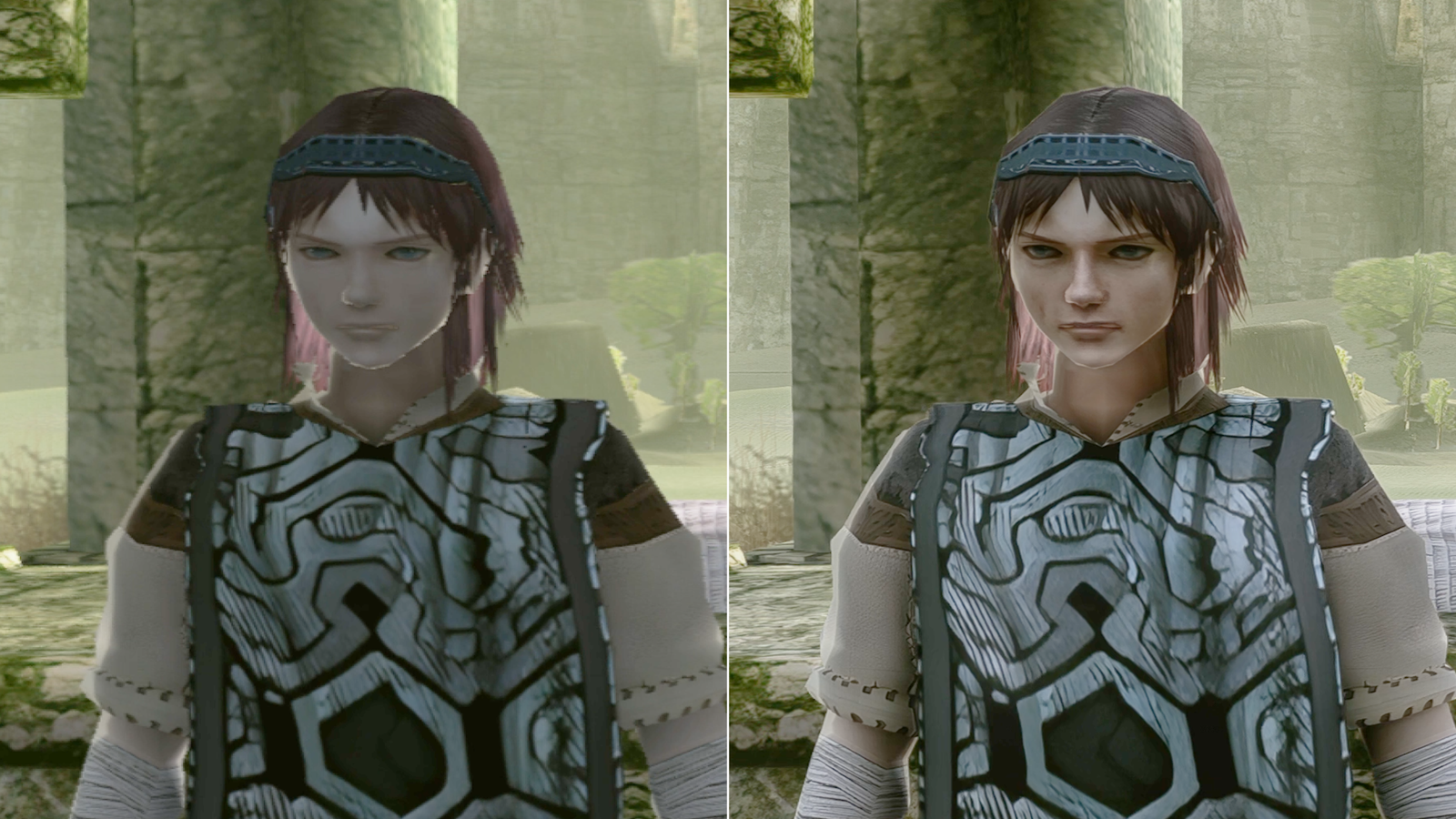
Using DLSS 5 Neural Rendering in old games and emulators has become much simpler. Until recently, this process involved manually installing ReShade, copying multiple files, choosing add-ons, configuring motion vectors, and making various adjustments before getting Neural Rendering to work.
https://youtu.be/vsb5w48zHUAThe 1 Click DLSS 5 was created precisely to simplify this process. Instead of configuring each component separately, you choose the game or emulator, order it to install, and the tool automatically prepares a good portion of the necessary files.
This is especially interesting for emulators like DuckStation, PCSX2 and RPCS3, which obviously do not have native support for DLSS 5. In these cases, the tool can use DLSS5-Feeder, creating a bridge between the image produced by the emulator and NVIDIA's Neural Rendering.
In practice, this makes it possible to test the technology in PlayStation 1, PlayStation 2, PlayStation 3 games, and also in various PC games. Neural Rendering can alter character details, materials, surfaces, lighting, and other elements of the image, although the result varies greatly from game to game.
It is important to remember that Neural Rendering is not simply meant to increase FPS. It adds processing load to the graphics card and can reduce performance, especially at high resolutions. Therefore, later on we will also see how to use Work Resolution to reduce the weight of the effect.
To avoid conflicts, it is recommended to start by using a clean version of the emulator. If you already use DuckStation, PCSX2, or RPCS3, many settings may remain saved even when opening a new copy of the program, allowing you to test the method without necessarily messing with your main installation.
Downloads
You don't need to download all the emulators below. Choose only the one you intend to use. The DuckStation, PCSX2, and RPCS3 buttons are configured to automatically locate the latest portable package available for Windows.
1. Extract the files
After finishing the downloads, unzip the 1 Click DLSS 5 into its own folder and do the same with the chosen emulator, if you downloaded a portable version. It is not necessary to put 1 Click inside the emulator folder, as it works separately and can locate the program later.
Open the file 1-Click-DLSS5.exe to access the main screen.
2. Make 1 Click find the emulator
On the main screen, click on SCAN DISCS. The program will search for games and emulators on the computer and display the results on the left side of the screen. If you want this search to happen automatically every time the program is opened, check Auto-scan on startup.
If the desired emulator does not appear, click on BROWSE GAME and manually select the folder where it is installed or unzipped. In PCSX2, for example, this will be the folder where the file is located pcsx2-qt.exe.
3. Install DLSS 5
When the emulator appears in the list, click on it. 1 Click will display some information about the program as well as the recommended method. In emulators that do not have native DLSS, it is normal for it to show the Mode 3: Universal Feeder.
After that, click on 1-CLICK: INSTALL DLSS 5. The tool will automatically begin preparing the necessary components for ReShade, Feeder, and Neural Rendering to work together.
Important: avoid installing 1 Click over a configuration that has already been modified by Autopilot, RHI, ShortFuse, or another installer. If you have used another method previously, first restore the files using the tool itself used in that installation.
4. Start the emulator
When the installation finishes, you can click on START GAME inside 1 Click itself. This button is merely a convenience offered by the tool and does not mean it will be necessary to open 1 Click every time you want to play. Next time, the emulator can be started normally via its own executable or shortcut.
5. Direct3D 11 and Work Resolution
If the emulator supports Direct3D 11, this API is especially interesting because it allows controlling the Work Resolution used by DLSS5-Feeder. This adjustment can make a big difference when Neural Rendering is making the game heavy.
This does not mean that Direct3D 12 has a better or worse image. When the settings are equivalent, the visual result can be practically the same. The main advantage of Direct3D 11 in this method is being able to reduce the resolution used during neural processing.
In PCSX2, for example, open the graphics settings and check the renderer being used. If you want to take advantage of the Work Resolution control, select Direct3D 11.
6. Open a game
Now start a game normally through the emulator. If the program closes unexpectedly on the first attempt after installation, try opening it again before concluding that the method did not work.
With the game running, press the HOME key on your keyboard to open the ReShade interface. One of the main advantages of 1 Click is that most of the configuration already comes ready, with the main necessary shaders and add-ons enabled.
7. How to turn Neural Rendering on or off
Inside ReShade, open the Add-ons tab and look for the DLSS 5 Neural Renderingpanel. There you can check if the feature is working and also temporarily disable it to compare the original image with the result produced by the neural model.
It is worth making comparisons both with the camera still and in motion. Depending on the game, minor deformations, ghosting, or other artifacts may appear during fast movements.
8. Understanding Neural Rendering options
1 Click already provides a ready-to-use configuration to get started, so you don't need to change everything. Even so, some options allow you to greatly customize the game's appearance.
- NR Preset: changes the internal behavior used by Neural Rendering. If in doubt, leave it as Default.
- NR Style: changes the overall style of the result. Depending on the add-on version, options like Default, Natural, or Cinematic may appear.
- NR Intensity: controls the overall strength of Neural Rendering. The higher the value, the greater the visual changes made by the model.
- Local Tone: influences local lighting and tonal changes.
- Local Structure: controls the force applied to the details and structures of the image. Very high values can leave some surfaces overly defined.
- Skin Structure: mainly influences skin and character details. Very strong values can make faces look artificial.
- Automatic Mask: allows Neural Rendering to automatically try to decide which parts of the image should receive greater or lesser influence from the effect.
- UI Correction: tries to prevent HUD, text, and menus from receiving the same processing applied to three-dimensional graphics.
There is no single perfect setting for all games. The ideal approach is to start with the values already configured by 1 Click and change one option at a time until you find the result you prefer.
9. How to improve performance
If the game becomes too heavy after enabling Neural Rendering, open the panel DLSS 5 Feed and look for the option Work Resolution. At 100%, neural processing works at full resolution. Reducing it to something like 75%, the model starts processing a smaller number of pixels, which can significantly improve performance.
If it's still heavy, test values close to 50%. The load on the graphics card will be lower, but the loss of definition may also become more noticeable. A good starting point is to test 75% first and gradually decrease it.
10. What is FSR 1 Expand-Back?
When the Work Resolution drops below 100%, the image needs to be upscaled again to the final screen resolution. To do this, the Feeder can use the FSR 1 Expand-Back.
It also offers a Sharpnesscontrol, responsible for image clarity. At low values, the image becomes softer. As the value increases, details and edges become more prominent. However, leaving Sharpness at maximum does not always produce a better image, as some games may end up with exaggerated outlines or an artificial appearance.
Warning: this FSR 1 does not turn the feature into DLSS Super Resolution. It only serves to upscale the image again after the Work Resolution has been reduced.
11. If it is still running slowly, lower your Windows resolution
If lowering the Work Resolution is still not enough, another alternative is to temporarily reduce the Windows resolution. Anyone using a 4K monitor, for example, can test the screen at 2560x1440 or even 1920x1080.
This significantly reduces the total number of pixels processed by Neural Rendering. After that, you can increase the Work Resolution again until you find a point that offers good quality without slowing down the emulator. The Work Resolution can be changed during gameplay without needing to close the emulator.
12. High-resolution textures are optional
It is not necessary to install texture packs to use DLSS 5. Neural Rendering works normally using the game's original graphics. Even so, some older games may benefit from higher-resolution textures.
Anyone who wants to try it out can check the list below, which brings together packs available for various emulated games.
13. Testing in other emulators
Once everything is working in the first emulator, go back to 1 Click and repeat the process with another program. Click again on SCAN DISCS or use BROWSE GAME, select the new emulator and perform the installation.
Thus, the same method can be tested in games from PlayStation 1 through DuckStation, PlayStation 2 through PCSX2, and PlayStation 3 through RPCS3, in addition to other compatible games and emulators.
14. How to remove DLSS 5
If you want to undo the installation made by 1 Click, open the tool again, select the same game or emulator, and click on RESTORE ORIGINALThe program records the files added and replaced during installation in order to be able to undo its own changes later.
Do not mix restorers: if the installation was done via 1 Click, use the 1 Click Restore Original. If it was done via Autopilot or another tool, use that same tool's removal method.
With this, trying out DLSS 5 in older games and emulators becomes much simpler. Instead of manually configuring each component, 1 Click concentrates installation, configuration, launch, and restoration into a single interface, leaving ReShade available for anyone who wants to make more advanced adjustments.

Pingback: RPCS3 NVIDIA: workaround aumenta FPS em até 37%
Pingback: Flycast macOS corrige flicker no Vulkan com MoltenVK
Pingback: Duke Nukem DLSS 5 roda via DOSBox e Multipass