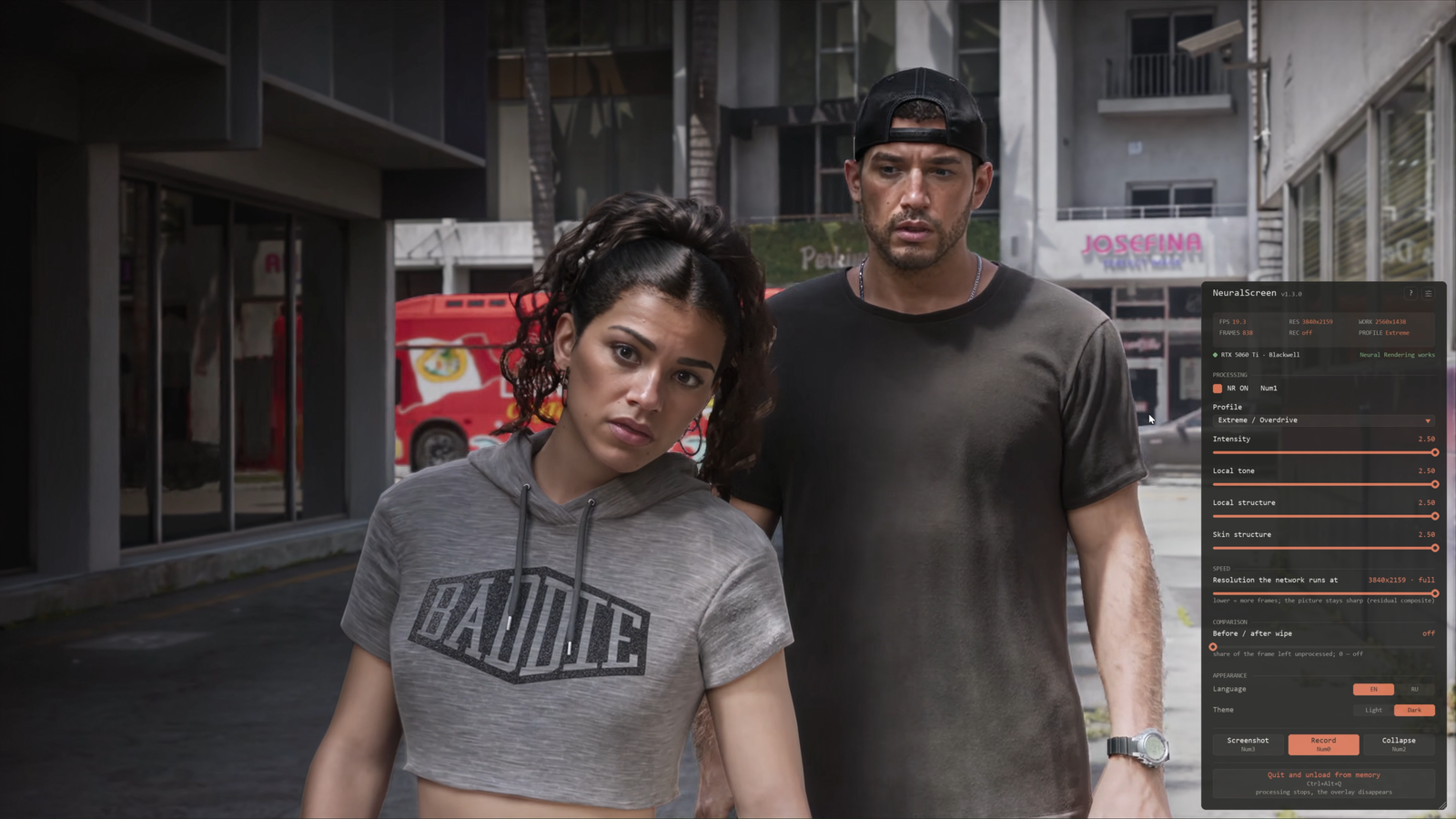
The NeuralScreen applies neural processing to the image displayed on Windows via an overlay layer on the screen. It can be used with games, emulators, videos, and other programs without installing files in each game. The project now offers separate packages for NVIDIA and AMD, with different requirements and development stages.
The NVIDIA edition uses the NVIDIA Neural Rendering runtime. The edition NeuralScreen AMD is an experimental version aimed at Radeon RX 7000 and RX 9000: it uses a third-party runtime to attempt running neural processing on these cards. It does not represent official support from AMD or NVIDIA, and early user reports still point to issues under investigation.
https://youtu.be/tDJ4vPc3USUNeuralScreen is an independent project. Applying an effect to the final desktop image is not equivalent to native DLSS integration in a game. Super Resolution, Frame Generation and Ray Reconstruction are distinct features; the availability of each varies depending on the edition and the graphics card used.
How does NeuralScreen work?
The program captures the entire screen or a selected window, processes the image, and displays the result in an overlay. By working over the already displayed image, it can also show the effect in games and emulators without native integration with the tool. Processing adds GPU overhead and may increase latency.
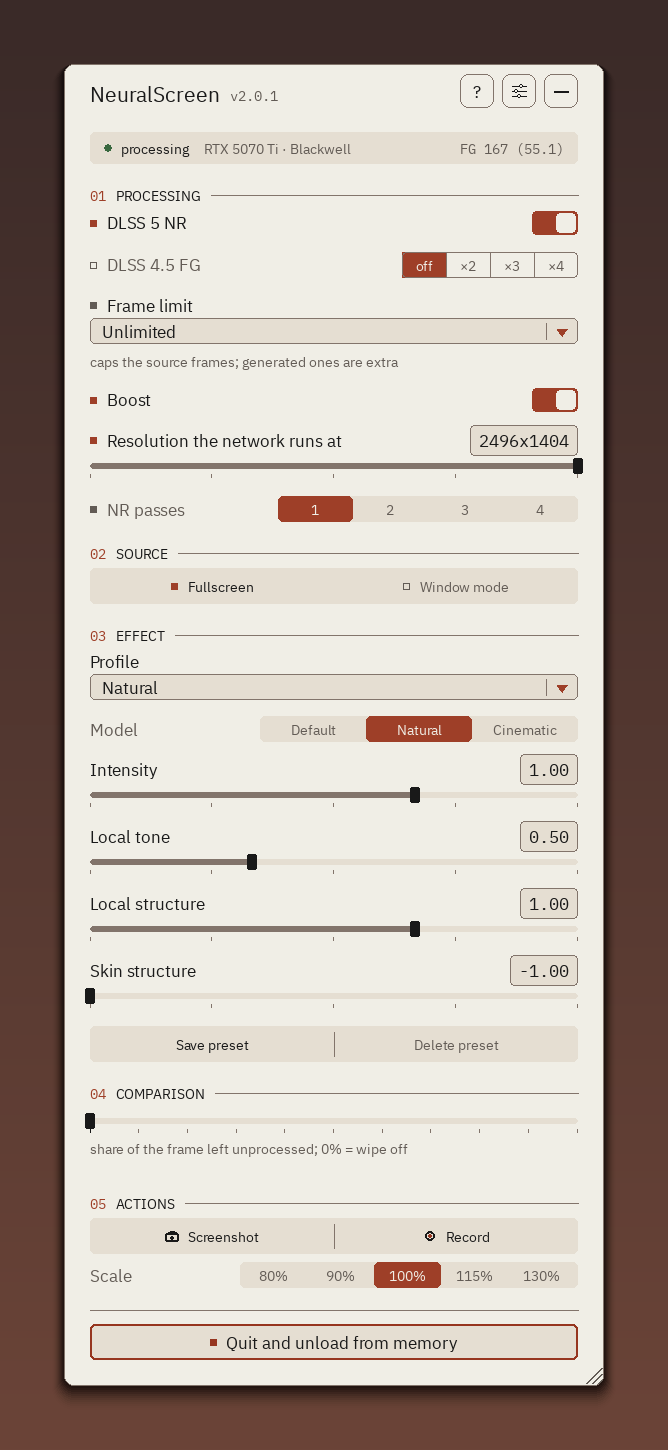
The application sits in the Windows tray and offers before/after comparison, profiles and image models, intensity adjustments, working resolution control, screenshots, and recording. Available options depend on the edition and downloaded version.
Which version to download: NVIDIA or AMD?
Choose the package from the manufacturer of the card where you intend to run the neural processing. The two buttons below check the official GitHub releases and point directly to the complete ZIP archive of the latest version of each repository. A new release may take up to ten minutes to appear on the buttons due to the cache used by the site.
DOWNLOAD UPDATED NEURALSCREEN NVIDIA
DOWNLOAD UPDATED NEURALSCREEN AMD
After downloading: extract the entire ZIP to a folder before running NeuralScreen.exe. Do not open the program directly from inside the compressed archive. The packages include the necessary environment and do not require a traditional installer. If Windows displays an unknown publisher alert, verify that the download came from the correct repository before deciding to run it.
Requirements and NVIDIA edition status
The NVIDIA edition requires a GeForce RTX graphics card, up-to-date drivers, and an updated Windows. Current project documentation reports local validation of Neural Rendering on RTX 50 series, with reports of operation on RTX 40 series still with cases to be resolved, a situation not verified on the RTX 30 series and a known failure on the RTX 20 series. Having an RTX, by itself, does not guarantee that the feature will operate on your machine.
NVIDIA's edition Frame Generation also has its own requirements: according to the project, the runtime refuses it on cards prior to the Ada architecture. Multi-GPU systems and hybrid notebooks may still require additional testing. For updated limitations, consult the developer compatibility table.
How to install and use NeuralScreen AMD
The AMD version is distributed in a separate repository and was created for testing on Radeon RX 7000 and RX 9000 (RDNA 3 and RDNA 4). The documentation states that the RX 6000 is not compatible with the neural processing of this edition: the application may open, but it will indicate that the card is not supported and will not apply the effect. The project requires Windows 11, logs usage reports on Windows 10, and recommends AMD Software: Adrenalin Edition 26.1.1 or newer, because of the HIP 7 runtime.
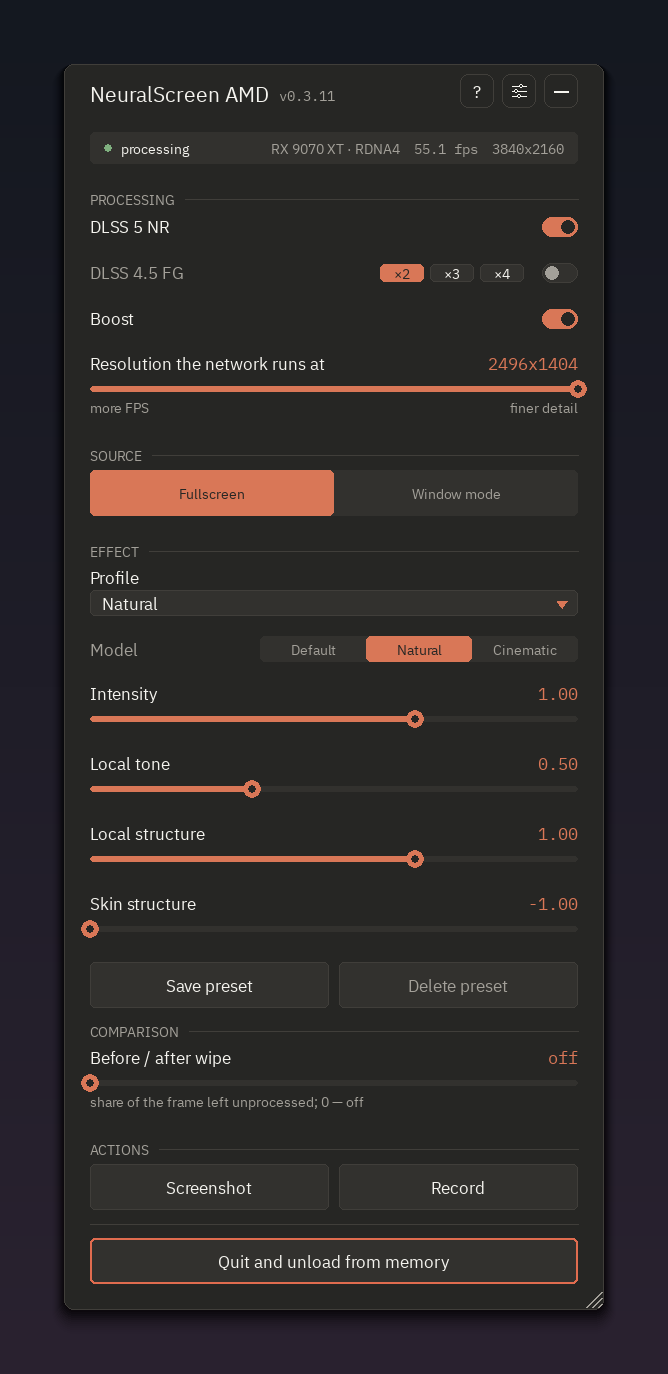
Step 1: use the AMD button above to download the full ZIP. Extract all files and run NeuralScreen.exe. The package already includes the neural runtime, model weights, and other necessary components; there is no need to copy DLLs from the NVIDIA version or manually install the project runtime.
Step 2: press Num2 to open the menu, with Num Lock enabled, and select the Radeon that will handle the processing if the computer has more than one GPU. The light next to the card turns green when neural processing is actually active; if it is red, check the information on the screen and the NeuralScreen.log file in the application folder. Use Num1 to toggle the effect.
Step 3: try out the control Boost and its working scale to reduce processing cost. Radeon performance still depends on user testing. In this edition, DLSS 4.5 Frame Generation does not work on a Radeon and the corresponding command appears unavailable. Do not confuse this limitation with experimental neural image processing.
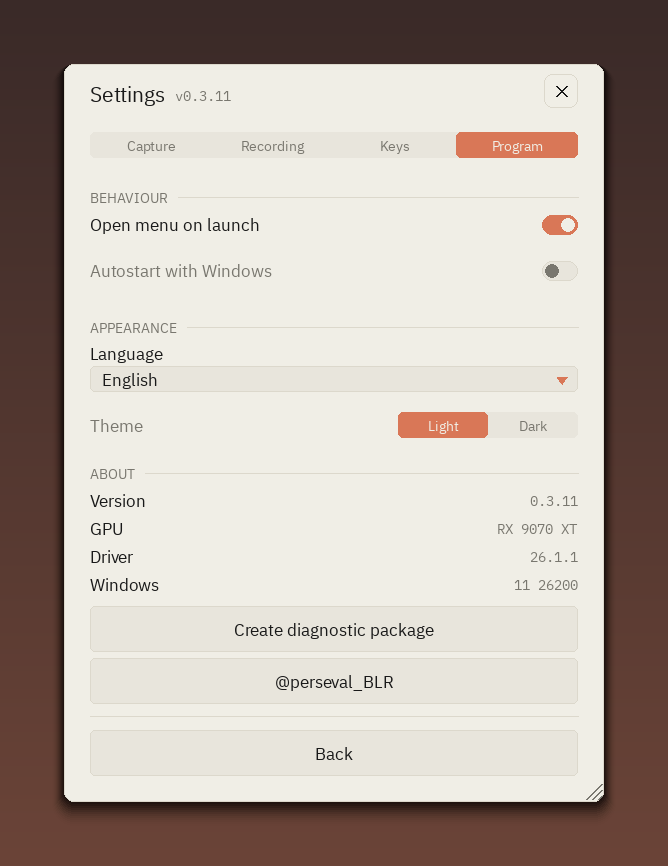
If there is a crash, black screen or flickering: check the technical guide for AMDfirst. In the menu, go to Settings → Program → Create diagnostic package and submit the package in an issue on the AMD repository, along with a description of the problem. The developer provides diagnostic launchers for specific cases; follow the instructions in the issue before using them, as they can significantly slow down the image speed during testing.
This edition is still in development. Recent release notes record reports obtained from real Radeons, but also document issues that are still open, such as flickering on some configurations. Therefore, automatically downloading the newest version does not guarantee stable operation on every RX 7000 or RX 9000.
How to enable processing and adjust the image?
In both editions, Num2 opens or closes the menu and Num1 turns neural processing on or off. Shortcuts use the numeric keypad by default, with Num Lock enabled, and can be remapped in the settings. The indicator next to the GPU helps distinguish an option turned on in the menu from actually active processing.
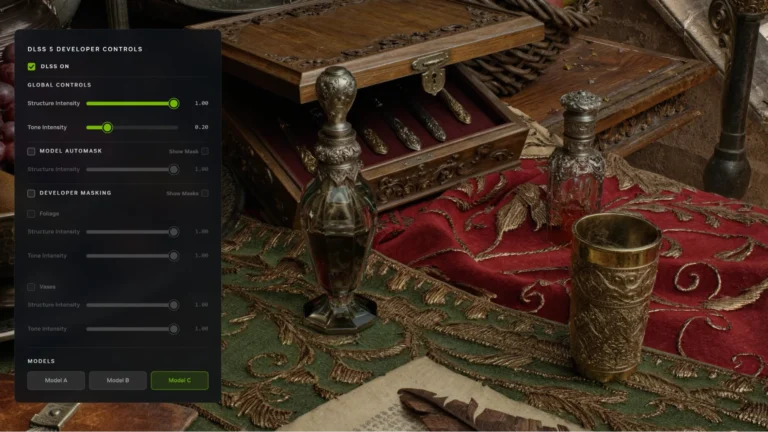
The profile controls the strength of the effect, with options ranging from Faithful to Extreme. The controls Intensity, Local Tone, Local Structure and Skin Structure allow changing their parameters. As for the field Model chooses the network variant, such as Default, Natural or Cinematic: changing profiles and changing models are different actions. Compare the result on the image you actually intend to use, as texts, faces and dark scenes react in different ways.
How to improve performance and use a 4K screen?
The work scale control associated with the Boost reduces the resolution at which the network processes the frames and combines the result with the original image. Thus, a screen can remain in 3840 × 2160 even with the processing done in fewer pixels. This tends to reduce the cost of the effect, but may alter the final appearance; make comparisons with Boost turned on and off.
In the current documentation, the network's working resolution is limited to 2560 × 1440, while the output remains at the monitor's resolution. FPS results measured by the developer in the NVIDIA version should not be treated as promised performance for AMD cards: the Radeon edition is still being tested on users' hardware.
How to use in games and in single-window mode?
Use the game in windowed or borderless windowed. Exclusive fullscreen prevents the overlay from appearing correctly. With the menu open, NeuralScreen receives keyboard and mouse to configure the options; close it with Num2 to return to controlling the game normally.
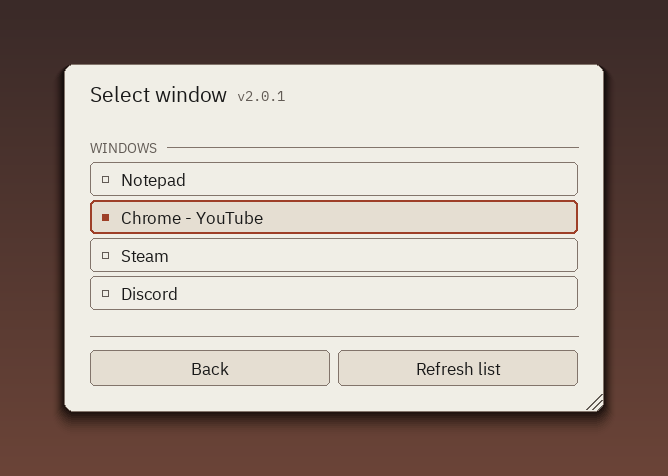
By default, the program processes the screen. In the option Source, you can choose a window from a list. You can also point the mouse at a window and press Num5. When the selected window is minimized, processing is paused. This function is useful for applying the effect only to the desired game or emulator.
How to record the result in OBS?
In current versions, the path indicated by the repositories for OBS is to enable Spout2 output (OBS) in the NeuralScreen settings and add a source Spout2 Capture in OBS. This method allows receiving the processed result in the different capture modes, as long as the Spout2 integration is available in the OBS installation.
In the NVIDIA edition, the NVIDIA App does not receive Spout2 directly; the developer indicates window mode for external capture by this application. In full-screen mode, the overlay may be hidden from common capture tools to prevent NeuralScreen from continuously recapturing its own image.
How to record and take screenshots using the program itself?
The shortcut Num0 starts or ends recording with system audio. Num3 takes a screenshot; saving options can be adjusted in the menu. The AMD edition tries to use the Radeon encoder, such as AMF, and may resort to other options depending on the configuration. Before recording a long session, do a short test and check the resulting file.
How to compare the before and after image?
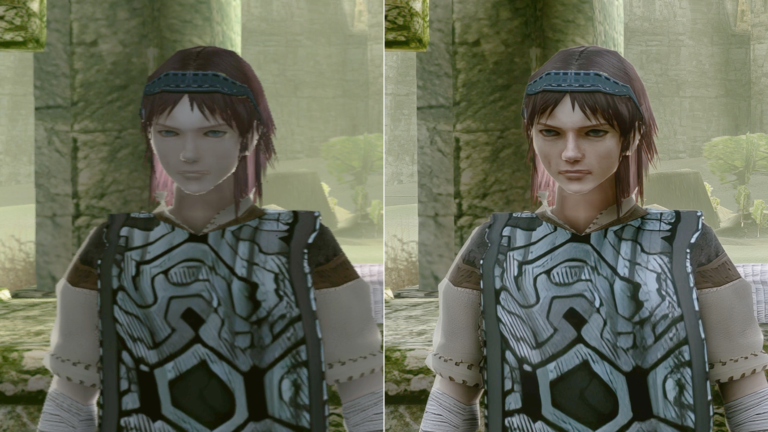
Press Num1 to toggle the effect, or use Before / after wipe to split the image and view both versions side by side. After comparing, return the split control to zero. The feature helps to evaluate the effect on a specific scene without relying solely on memory impression.
Main shortcuts
Num1: effect on/off; Num2: menu; Num3: screenshot; Num0: record/stop; Num4 and Num6: decrease/increase processing scale; Num5: select window under cursor; Ctrl + Alt + Q: close the application. Shortcuts can be changed in the settings. In the AMD edition, NVIDIA Frame Generation is not available.
Cautions and limitations
The developer recommends not using NeuralScreen in online competitive games with anti-cheat, as the overlay may not be compatible with these systems. HDR and multi-GPU configurations may also need adjustments or exhibit experimental behavior. If the image does not appear, first consult the log and the instructions for the corresponding edition.
Since the program is portable, to remove it, close it completely and delete the extracted folder. If you have enabled automatic startup with Windows, disable this option in the settings before deleting the folder.
Official sources
NeuralScreen NVIDIA: repository and instructions · NVIDIA releases · NeuralScreen AMD: repository and instructions · AMD releases · AMD technical guide.
Pingback: NeuralScreen AMD 0.3.24 corrige flicker nas Radeon
Pingback: NeuralScreen 2.1.7 Reduz Stutter do Frame Generation
Pingback: NeuralScreen 2.1.8 corrige hotkeys e capturas