In this complete and updated tutorial for 2025, you will learn the definitive method of how to play PS2 on iPhone. The process we will detail uses the technique of Sideloading to install applications without the need for Jailbreak, which makes it totally safe and reversible. Furthermore, once configured, you will not need to keep the iPhone connected to the computer. Therefore, this is the only guide you will ever need to run your PlayStation 2 classics anywhere.
It is important to emphasize that popular PS2 emulators, such as AetherSX2 and PCSX2, do not officially exist for iOS. Therefore, beware of tutorials that promise the installation of these specific apps. The method we will teach here is the only one that truly works, as it allows the installation of emulators and activates JIT for the best possible performance.
https://youtu.be/3jnFvU7906w
What is Sideloading and why is it necessary?
Before we start, it is fundamental to understand two concepts: Sideloading and JIT.
First, Sideloading is the process of installing apps on the iPhone from (.ipa) files, without using the App Store. In turn, the JIT (Just-in-Time) is a technology that "translates" game code in real time, thus allowing the emulator to run with much more speed and fluidity.
Although older consoles (up to the 5th generation) can be emulated on iPhone without JIT, for the PlayStation 2 (6th generation) it is practically mandatory to have a good experience. Consequently, since Apple does not allow App Store apps to use JIT, sideloading becomes our only path.
Essential Requirements
Computer: You will need a PC with Windows 10 or later, but it will only be used during the initial setup.
USB cable: To connect the iPhone to the PC.
Wi-Fi connection: Only for initial installation; not required for gameplay.
Apple ID: Your free Apple account (@icloud.com).
iPhone: You must have iOS 17.4 or higher installed. Performance varies, so the newer your device, the better the emulation will be.
Step-by-Step on Computer (Single Step)
Let's start on the PC. Remember, you will only do this process once.
1. Installation of iTunes, iCloud, and AltServer
First, download the essential file package below.
Click here and download the complete package with all the necessary files
Inside the package, you will find the iTunes and iCloud installers. It is crucial that, if you already have iTunes or iCloud from the Microsoft Store installed, you uninstall them first and use the files provided in the package.
After installing both and restarting your PC, log in with your Apple ID on both programs. Then, inside the folder you downloaded, install AltServer using the "setup" file.
2. Connecting and Setting Up the iPhone
Now, connect your iPhone to the PC using the USB cable. A message may appear on your phone screen asking to "Trust This Computer". Then, tap "Trust" and enter your passcode.
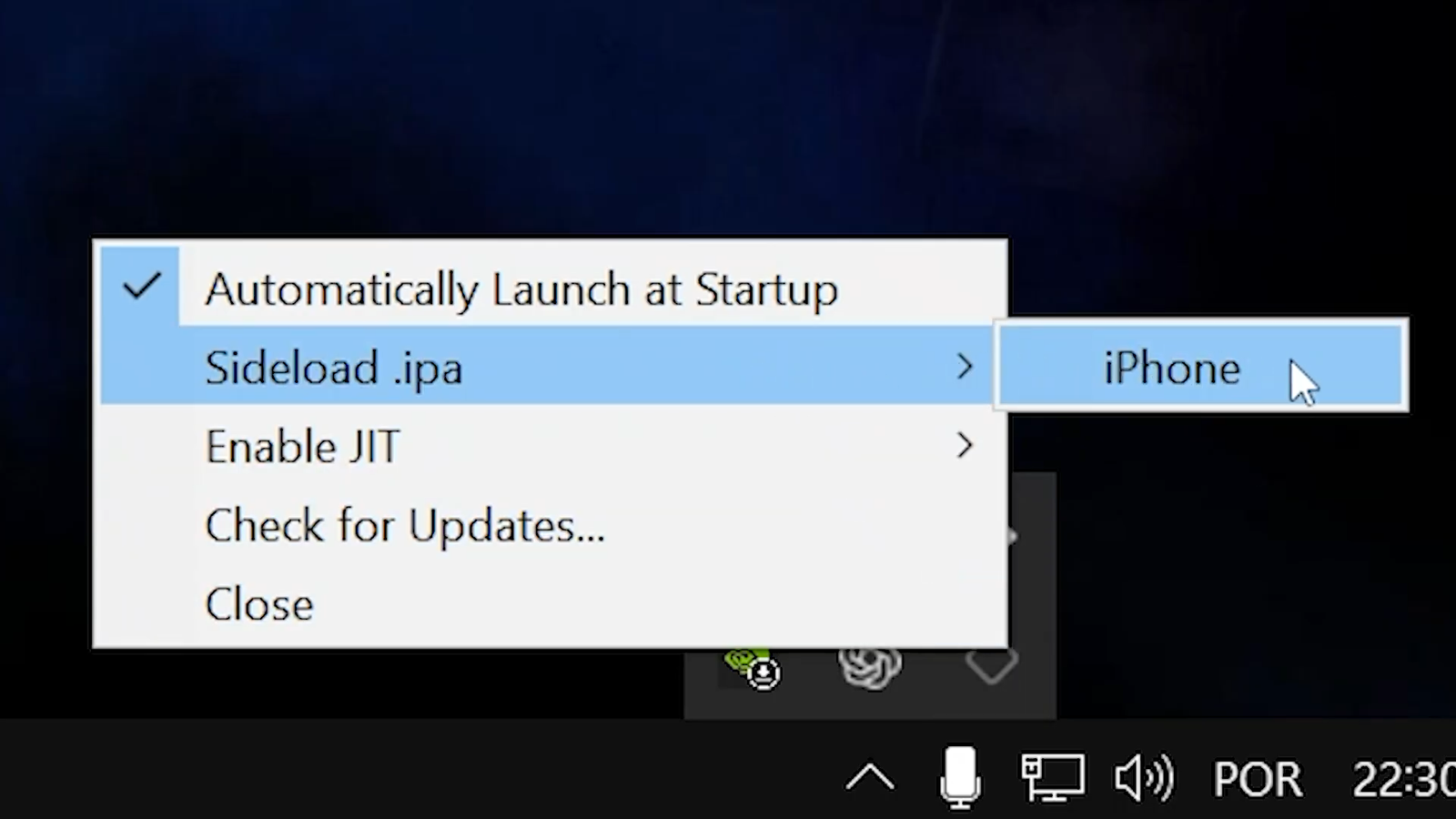
On the PC, find and run AltServer, which you just installed. In the taskbar (near the clock), click the hidden icons arrow, find a diamond-shaped icon (AltServer), hold down the Shift key on your keyboard and right-click on it.
AltServer menu appearing when holding Shift and right-clicking.
3. Installing SideStore
In the menu that appeared, hover over "Sideload .ipa" and click on your iPhone's name. Right after, in the window that opens, navigate to the folder with the files you downloaded and select the file SideStore.ipa. Log in with your Apple ID again and wait. Moments later, the SideStore app will appear on your iPhone.
4. Generating the Pairing File
With your phone still connected, open the "jitterbugpair" folder on your PC. Right-click the "jitterbugpair" application and select "Run as administrator". Then, confirm the trust message on your iPhone again.
Run "jitterbugpair" as an administrator one more time. You will see that a file with a long name (your UDID) will be generated in the folder. This is your "Pairing File", a unique and essential file.
To transfer it to your iPhone, the easiest way is to compress it into a .zip file and email it to yourself. Once that's done, you can finally disconnect your iPhone from the PC, as the computer is no longer needed.
Final Step-by-Step on iPhone
Now, we will make all the remaining settings directly on your cell phone.
5. Enabling Developer Mode
First, we need to authorize the app we installed. Go to Settings > General > VPN & Device Management. Tap the "Developer App" option, trust your Apple ID and confirm.
Then, go back to Settings, go to Privacy & Security, scroll to the bottom and enable Developer Mode. The iPhone will restart. Finally, after restarting, confirm the activation in the message that appears.
6. Configuring SideStore and JIT
On your iPhone, find the email you sent, download the .zip attachment, and save it to the "Files" app. Then, open the Files app and unzip the .zip file.
Now, open SideStore. Basically, it is your "alternative store" for installing emulators. Grant the permissions and, when it asks for the "Pairing File", select the file you just unzipped. Finally, log in with your Apple ID in the SideStore settings.
To activate JIT, the process has been simplified. Open the official App Store, search for and install the app StikDebug. Open it, grant the permissions and, when prompted, select the same "Pairing File" again. StikDebug activates a safe local VPN that allows SideStore to use JIT. Therefore, keep it open in the background with the VPN enabled.
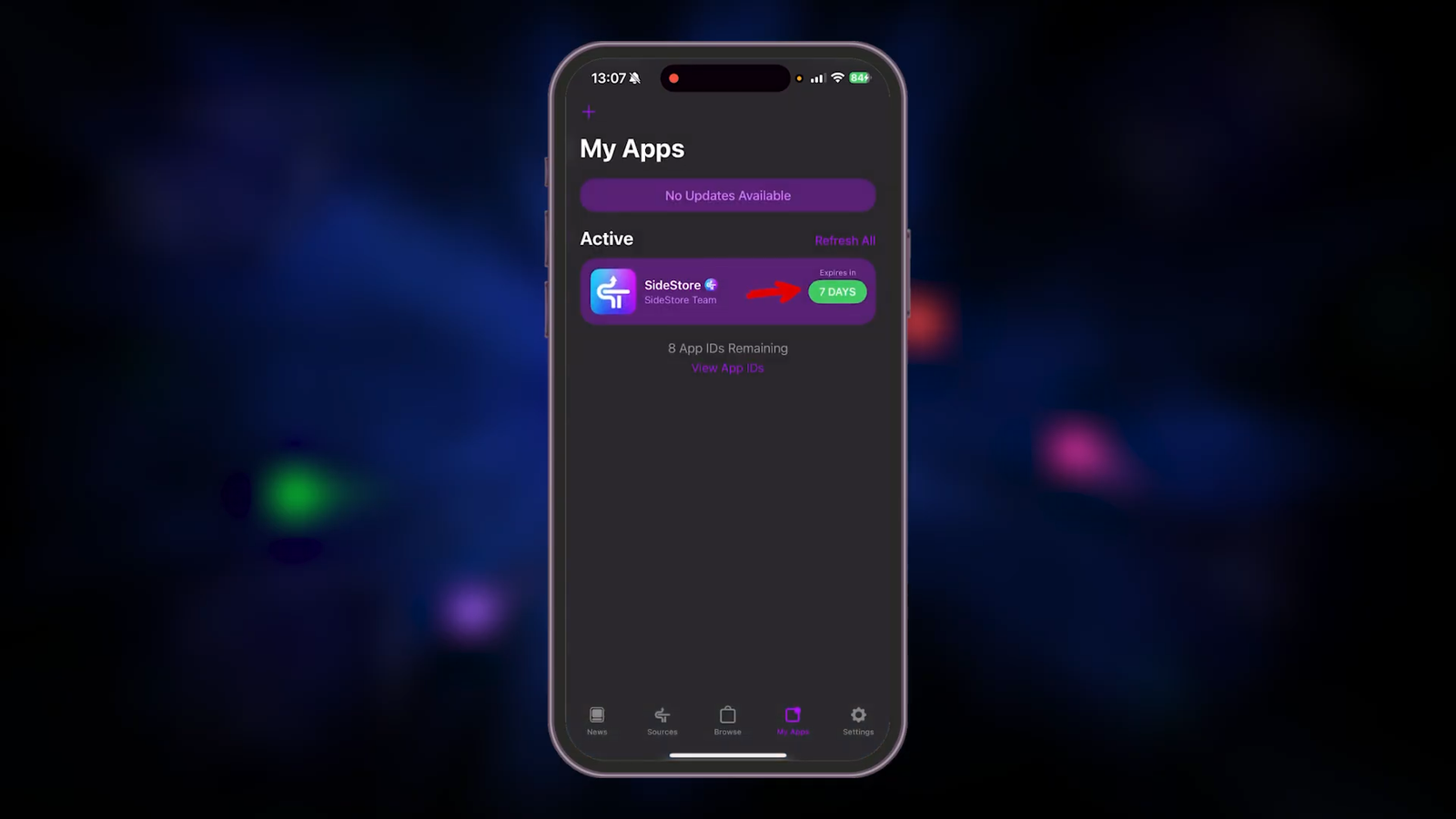
"My Apps" screen in SideStore showing the days counter.
7. Keeping Apps Active (Refresh)
Apps installed via SideStore expire in 7 days. To renew them, you need to open SideStore with the StikDebug VPN active and tap "Refresh All".
However, to automate this process, you can create an automation in the iPhone's "Shortcuts" app. The automation can be configured to run the "Refresh SideStore" shortcut (available here) every time you connect your iPhone to charge. This way, your apps will be refreshed automatically, ensuring that they never expire.
Finally, done! Now that the environment is fully set up, you are ready to install emulators and discover in practice how to play PS2 on iPhone with the best possible performance.
Para fornecer as melhores experiências, usamos tecnologias como cookies para armazenar e/ou acessar informações do dispositivo. O consentimento para essas tecnologias nos permitirá processar dados como comportamento de navegação ou IDs exclusivos neste site. Não consentir ou retirar o consentimento pode afetar negativamente certos recursos e funções.
Funcional
Always active
O armazenamento ou acesso técnico é estritamente necessário para a finalidade legítima de permitir a utilização de um serviço específico explicitamente solicitado pelo assinante ou utilizador, ou com a finalidade exclusiva de efetuar a transmissão de uma comunicação através de uma rede de comunicações eletrónicas.
Preferências
O armazenamento ou acesso técnico é necessário para o propósito legítimo de armazenar preferências que não são solicitadas pelo assinante ou usuário.
Estatísticas
O armazenamento ou acesso técnico que é usado exclusivamente para fins estatísticos.O armazenamento técnico ou acesso que é usado exclusivamente para fins estatísticos anônimos. Sem uma intimação, conformidade voluntária por parte de seu provedor de serviços de Internet ou registros adicionais de terceiros, as informações armazenadas ou recuperadas apenas para esse fim geralmente não podem ser usadas para identificá-lo.
Marketing
O armazenamento ou acesso técnico é necessário para criar perfis de usuário para enviar publicidade ou para rastrear o usuário em um site ou em vários sites para fins de marketing semelhantes.



Pingback: Emuladores iOS: Lista Completa e Atualizada para iPhone | Allves Games