

First, want to play classic PlayStation 2 games on your mobile phone? Without a doubt, the ARMSX2 Android Emulator is the ideal tool. In fact, this complete guide will teach you how to install and configure the emulator step by step. In addition, you will also learn how to optimize it. Therefore, you will enjoy your favorite games quickly. So, get the best performance today!
After all, don't forget to subscribe to the Allves Games channel for more tips and tutorials! That is, you can also download ARMSX2 directly from the Google Play Store.
Downloading and Installing the ARMSX2 Android Emulator
Above all, the first step is to download the emulator. For the Android version, you can download the app directly from the Play Store. Therefore, open the store and search for ARMSX2. Indeed, the first result, 'ARMSX2 Refresh', is the correct one. In short, install it and open the application.
On the other hand, this is the first setup screen of ARMSX2. Consequently, click CONFIRM to proceed. Next, the emulator will ask where you want to save the data. That is, this includes the Memory Card and settings. Therefore, choose the phone's internal storage or SD card. Without a doubt, I strongly recommend the internal storage. Thus, click CONFIRM again.
Configuring the PS2 BIOS in ARMSX2
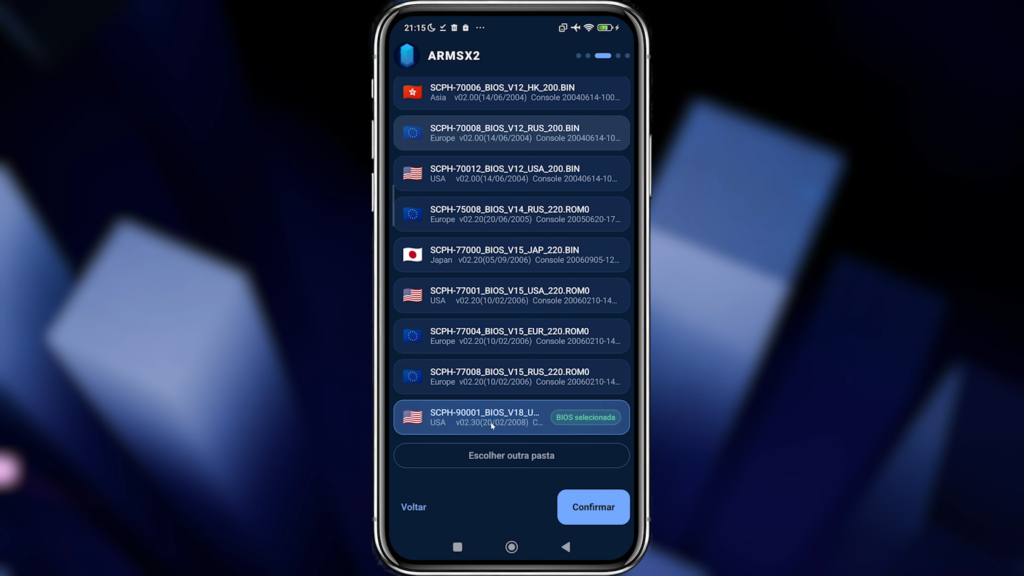
Now it is time to select the PlayStation 2 BIOS. Without a doubt, the BIOS is essential for the emulator to work properly. Furthermore, you will need these crucial files. In fact, you can download the BIOS list by clicking here. That is, you can download each BIOS separately. Or else, a complete BIOS pack. I suggest the complete pack. Therefore, click the blue button to start the download.
After that, return to the emulator app. Consequently, click on SELECT BIOS. Therefore, navigate to the folder where you saved the BIOS. Indeed, generally, this folder is 'DOWNLOADS'. Thus, click on USE THIS FOLDER and then on ALLOW. Consequently, the emulator will scan and detect the BIOS. For example, the Japanese BIOS can be selected initially. However, select the most recent American BIOS, which is SCPH-90001. After all, select it and click CONFIRM to finish.
Adding your PS2 Games
In short, with the BIOS configured, it's time to add your games. Furthermore, you will need the titles to play. Indeed, you can access the list of games translated or dubbed in PT-BR here. There, you will find the download options. Above all, it is important to note the PASSWORD column. Thus, if the column is empty, the game does not require a password to extract. Therefore, choose a game and download it.
Then, in the emulator, choose the folder to save your games. Indeed, I used a folder called 'PS2 GAMES'. Undoubtedly, you can create your own folder anywhere on your phone. Consequently, click on USE THIS FOLDER and ALLOW. Thus, if you have other folders with games, add them. In other words, click CONFIRM if everything is correct. Furthermore, for major performance gains, check out the latest update of ARMSX2.
Organizing Your Library and Initial Settings
After selecting your folders, the emulator will show a brief summary. Therefore, review your choices carefully. Consequently, if everything is correct, click on LET'S GO. Now, the true use of the emulator begins. However, make an important note: if the BIOS appears in the game list, reorganize your folders. Indeed, this happens if the BIOS folder is inside the games folder.
To fix this, open your FILE MANAGER. Consequently, find the BIOS folder. Therefore, press and hold your finger on it and select MOVE TO. Thus, take it to 'INTERNAL STORAGE', then 'DOWNLOAD' and click PASTE. Therefore, return to the emulator and click the REFRESH button. Consequently, the game list will be correct. In addition, also check BIOS LOCATION in the HAMBURGER BUTTON. Indeed, make sure the desired BIOS is still selected. All good? After all, launch a game to test it.
The first time, it's like turning on a brand new PlayStation 2. First, select the LANGUAGE to PORTUGUESE. In the TIME ZONE, choose 'SOUTHWEST GREENLAND'. In fact, this option corresponds to the Brasília and São Paulo GMT. Also, choose DAYLIGHT SAVING TIME. Consequently, click CONFIRM. The game will start, and messages about saves will be normal. Therefore, click CONTINUE. There you go, the ARMSX2 Android Emulator is running perfectly!
Optimizing ARMSX2 Android Emulator Performance
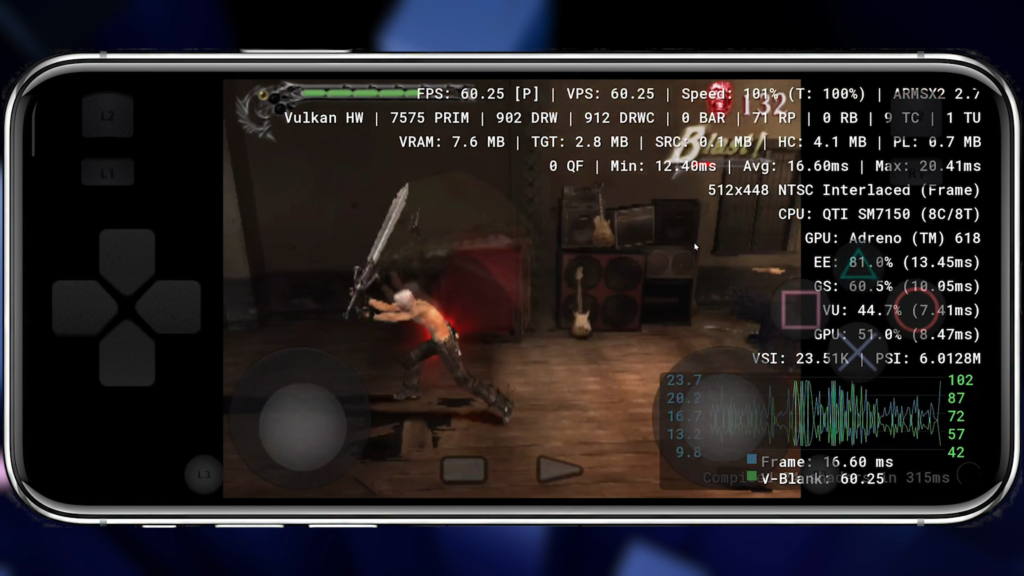
For an even better experience, optimize the performance. First, pause the game by pressing your phone's BACK button. Therefore, in the menu, enable the FPS COUNTER. Without a doubt, this helps monitor performance. That being said, click SAVE STATE and choose a slot. In fact, select SLOT 1.
When checking the stats, you will notice the active renderer. Usually, the system uses OPEN GL. However, VULKAN offers better performance on most modern devices. Therefore, change the renderer to VULKAN. That being said, scroll down and click APPLY AND RESTART. After restarting, reopen the menu. Consequently, click LOAD STATE and select the moment you stopped. In short, the ARMSX2 Android Emulator will run with excellent performance.
Connecting a Controller and Exploring More Tips
Above all, playing with a physical controller transforms the experience. In fact, even using on-screen controls, immersion increases greatly. Therefore, to connect, just turn on BLUETOOTH on your cell phone. Thus, pair your controller. Consequently, you will be able to enjoy games comfortably. In other words, if you don't have a controller, buy a discounted controller by clicking here.
Also, if you are looking for other titles, check out the installation guide for Zelda Twilight Princess PC Port. On the other hand, for horror fans, Silent Hill 1 PC Port also offers modern improvements. Consequently, if you want to enhance your emulation setup, check out the useful items available here. After all, did you enjoy this guide? Therefore, don't forget to subscribe for more content. In short, explore our site for more tutorials. See you soon!



Pingback: Atualização Emulador ARMSX2: Grandes Melhorias de Performance e Interface
Pingback: Atualizar ARMSX2 Android: Guia Completo Sem Play Store