

⚠️ Performance Requirements & Important Notices
Minimum Compatibility: At least an iPhone XR or iPhone SE 2020 is recommended. Devices in this line run many titles natively and stably. Extremely heavy games (CPU/GPU intensive) may require resolution downscaling, emulation downclocking, and frame limiters.
Special Warning for the iPhone 15 Pro line: Due to the titanium construction around the A17 Pro chip, there is a risk of overheating. It is recommended to play using cooling pads, heat sinks, or in well-cooled environments.
First time doing Sideloading? If you have never done sideloading, we strongly recommend following the official SideStore tutorial to understand the basic process.
Official SideStore Documentation https://www.youtube.com/watch?v=igLZxnWcq2s1. Prerequisites (Required Downloads)
Download and configure all the items below before starting the physical installation:
Computer 1.1 iLoader (Windows / macOS)
Computer tool used to simultaneously install LiveContainer and SideStore (Nightly version) on your iOS via USB cable.
Download iLoader on GitHubComputer 1.2 Apple ID
An Apple account is required. If you do not want to use the account currently logged into your iPhone, create one for free by clicking below.
Create Free Apple IDiOS 1.3 iOS Developer Mode
Required to run any sideloaded app. Enable it directly in the Settings of your iPhone or iPad.
How to Enable Developer ModeiOS 1.4 LocalDevVPN App
Essential local VPN app for SideStore and JIT to work autonomously directly on your device.
Download LocalDevVPN from the App StoreiOS 1.5 ARMSX2 Emulator (.ipa)
Download the latest version of the ARMSX2 emulator installation file for your iOS device.
Download latest ARMSX2 (.ipa)iOS 1.6 "universal.js" Script (StikDebug)
Mandatory script used by StikDebug to inject and enable the JIT compiler, essential for running the emulator at maximum speed.
Download "universal.js" Script2. Step-by-Step Installation
Step A: Installing LiveContainer, SideStore (Nightly) and StikDebug
- Computer Connect your iOS device to your computer using the original USB cable.
- Computer Open the program iLoader on your PC or Mac, log in with your Apple account, select your device, and click Install "LiveContainer + SideStore (Nightly)".
- Computer In the iLoader dashboard, click "Manage Pairing File" and select the option "Place on all apps".
- Computer Still in iLoader, go to the tab "Certificates" and import the certificates into SideStore.
- iOS Open the app LiveContainer on your iOS. In the applications tab ("Apps"), open SideStore by tapping its respective icon located in the top left corner (next to the "+" button).
- iOS Inside SideStore, go to the "Settings" tab and enter your Apple account credentials.
- iOS Install the StikDebug app. You can do this directly through SideStore if you have the .ipa file or by going to the "Resources" tab in SideStore to load and install it.
- iOS Go back to the app LiveContainer, access its "Settings" and tap "Import certificates from SideStore".
Step B: Installing ARMSX2 and Activating JIT
- iOS Open the LiveContainer, go to "Settings", find the JIT option and change the JIT Enabler to StikDebug.
- iOS In the "Apps" tab of LiveContainer, tap the plus icon "+" and select the .ipa file of ARMSX2 downloaded in Step 1.
- iOS Press and hold the ARMSX2 icon inside LiveContainer, tap Settings, enable the option "Launch JIT" and select the script "universal.js" that you previously downloaded.
- iOS Open the app StikDebug, press and hold the LiveContainer app listed there, tap on "Assign Script" and select the "universal.js".
Step C: Running the Emulator and Playing
- iOS Open the LiveContainer and run ARMSX2. StikDebug will open in the background automatically.
- iOS As soon as the popup appears asking if you want to enable JIT, select "Enable and Run Script". Grant "Always" location permission to the app.
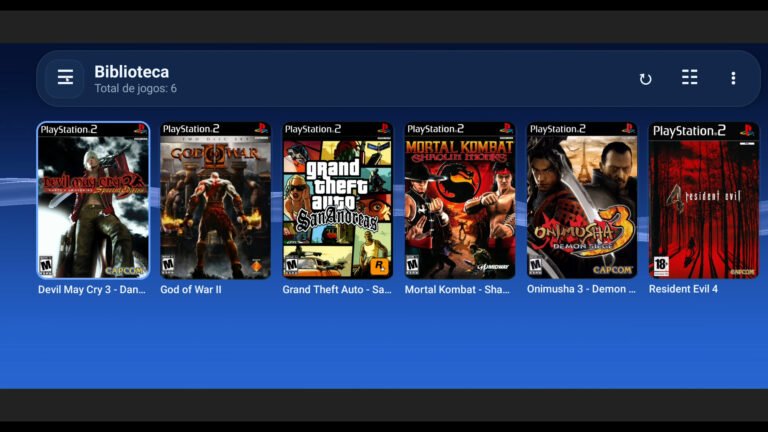
- iOS Select your legally acquired BIOS, import your favorite PS2 games and have fun!
3. Troubleshooting
If you encounter failures in JIT initialization or BIOS detection, check these steps:
⚡ How to Fix Initialization Failures or JIT Loss
Critical Warning: iOS revokes JIT permission after 1 minute of inactivity. Make sure to load the game quickly when opening the emulator cleanly.
In StikDebug:
- Enable the option "Always Run..." in the settings of the StikDebug app.
- Make sure that the "universal.js" script is correctly associated with LiveContainer by pressing the app in the list and selecting "Assign Script" -> "universal.js".
- If JIT still fails, turn off the LocalDevVPN and the Wi-Fi. Then, turn the Wi-Fi on again and enable the VPN.
In LiveContainer:
- Ensure that StikDebug is the official enabler: Go to Settings > JIT Enabler and select StikDebug.
- Check if JIT is active specifically for ARMSX2 inside the container: Press and hold the ARMSX2 icon, enable the "JIT" option and ensure that the "universal.js" script file is selected.
💿 How to Solve BIOS Recognition Problems
- No duplicate files: Import only one BIOS file at a time. Search on Google for the most stable/appropriate version legally obtained from your PS2 console.
- Clean filename: Ensure the BIOS file does not contain spaces or special/strange characters in its name.
- Clean opening: If the app closes or fails to read the BIOS, restart ARMSX2 completely (by closing the app in the background on iOS) to renew the JIT session.


Pingback: ARMSX2 no iOS corrige auto-save ao voltar para o menu