If you want to have more freedom on your
iPhone to use apps outside the App Store, the first essential step is to learn how to
install SideStore. Currently, the process of
Sideload changed and, unlike old methods, it
SideStore offers a major advantage: it allows you to update your apps via Wi-Fi using a local VPN. In other words, you won't need to connect cables to the computer every week. Therefore, in this guide, we will teach the entire updated process, from scratch, so you can successfully
install SideStore successfully.
https://youtu.be/VyE3wt4FHy0?si=ZCVoFJKGnHlhm5gp
1. Initial preparation to install SideStore on iPhone
Before heading over to the computer, you need to configure the environment directly on your iOS device. Basically, the secret for SideStore to work wirelessly is the use of an internal VPN that simulates a connection to a signing server. Therefore, the first step consists of downloading the app responsible for this function.
- First, open the App Store on your iPhone;
- Next, search for LocalDevVPN;
- Finally, install this application.
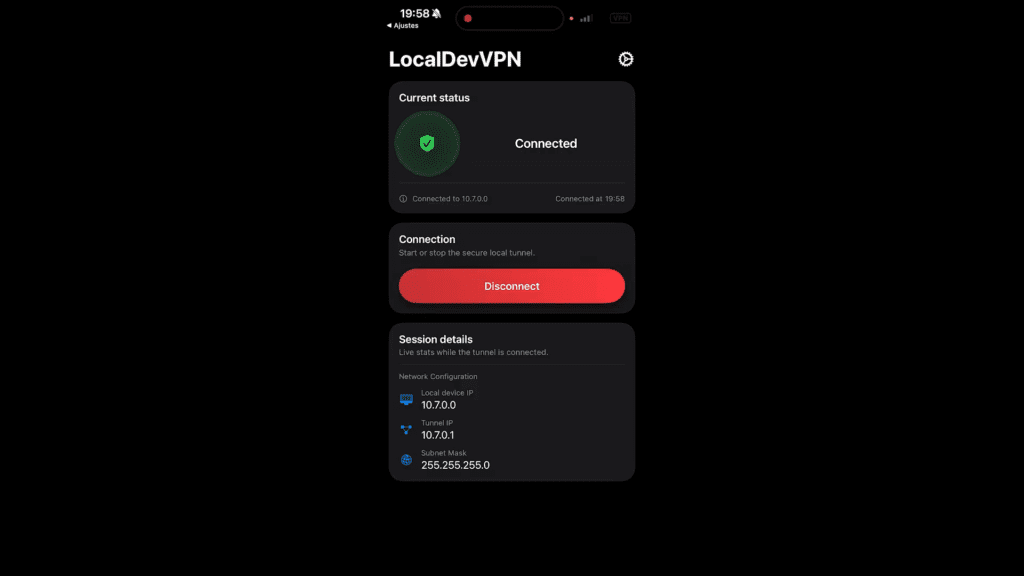
In practice, LocalDevVPN creates a local tunnel. Thus, it uses your own iPhone as a server to allow the installation and renewal of certificates. In addition, it is worth noting that it is a secure process, as it does not use external networks. Right after installing the application, follow these steps:
- Open LocalDevVPN;
- Proceed by clicking "Next" repeatedly until you reach the "Get Started" option;
- Next, click on "Connect" and allow the creation of the VPN configuration when iOS prompts you;
- Immediately, enter your iPhone's passcode to confirm the connection.

2. Necessary setup on the Computer (Windows)
Now that the phone is ready, let's move on to the computer. However, it is important to note a technical detail: you must use a 64-bit version of Windows. In addition, to be able to
install SideStore, we will need two specific tools: iTunes (non-Microsoft Store version) and iLoader.
Step by step on the PC
Initially, you must ensure that you have the correct iTunes. If by chance you already have the Microsoft Store version installed, remove it before proceeding, as it will not work for this method.
Click here to download iTunes and perform the installation. During the process, you can uncheck the option to use it as the default audio player, if you prefer. However, make sure that the installation has finished correctly.
Next, we need iLoader. This is the tool that will effectively send SideStore to your phone.
Download iLoader here. When trying to open or install this file, Windows may issue a security warning. If this happens, do not worry: click on "More info" (or the three dots) and select "Keep" or "Run anyway" to proceed with the installation.
3. Process to install SideStore via USB
With the programs properly installed, connect your iPhone to your computer using the USB cable. Immediately unlock your cell phone screen. If a message appears asking whether to "Trust This Computer", click "Trust" to authorize the connection.
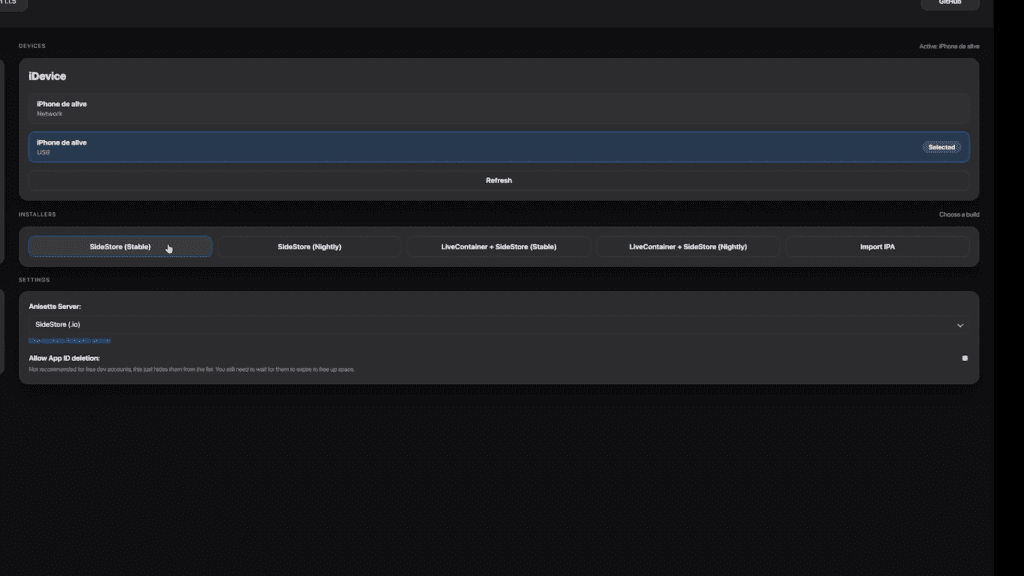
Now, open iLoader on your computer and carefully follow these steps:
- In the upper left corner, log in with your Apple ID and password. Note that the system may ask for a two-factor verification code, which will appear on your iPhone screen;
- As soon as you log in, select the "iPhone USB" option;
- Finally, click the "SideStore Stable" button. Consequently, iLoader will download and start the process to install SideStore on your device.
4. Finishing setup on iOS
After iLoader confirms the installation, the SideStore icon will appear on your iPhone. However, it still won't open immediately, as we need to authorize the developer in the settings.
To do this, go to
Settings > General > VPN & Device Management. Tap on your Apple ID (identified as Developer App) and select the "Trust" option.
Additionally, if you are using iOS 16 or later, there will be an extra step: enabling Developer Mode.
- Go to Settings > Privacy & Security;
- Scroll down to the bottom of the screen and tap Developer Mode;
- Enable the option. The iPhone will restart automatically. As soon as it turns on, confirm the activation and enter your unlock passcode.
Connecting and Validating the Store
Finally, to open SideStore for the first time and ensure it works perfectly, follow this order:
- First, make sure that the app LocalDevVPN is open and with the status "Connected";
- Next, open SideStore and navigate to the tab Settings;
- Log in with the same Apple ID you used on the computer.
Done! Now you have
install SideStore and have a functional store. Remember, however, that apps are valid for 7 days. That way, to renew, simply connect to the VPN (LocalDevVPN) and click "Refresh All" inside SideStore before this period expires.