If you are a fan of old games and want to relive the classics on your cell phone, you probably already know the DuckStation emulator. But, if you still don't know how to open games in DuckStation, in this tutorial, we will teach you a few ways to do this.
Before Starting: Make Sure to Indicate the Location of the Games
Before starting to open games in DuckStation, it is important to check if you have already indicated to the emulator where your games are stored. Otherwise, the games will not appear in Duckstation's library. To find out how to do this,
click here.
Ways to Open Games on Duckstation for Android
First, there are three main ways to open games in Duckstation:
- Through the Emulator Library
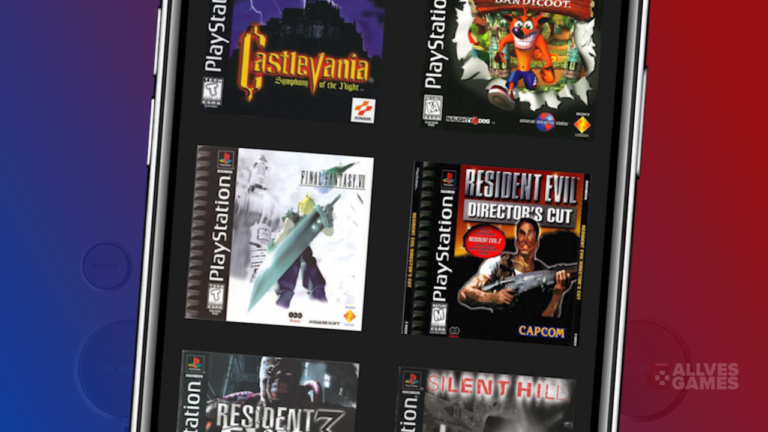
The most intuitive way to open a game in DuckStation is through the Emulator Library. On the home screen, simply click on a game in the Library and it will start running.

However, if you open the game this way, it will continue exactly from where you left off the last time you played, due to the "Save State on Exit" feature.
- Starting the Game from the Beginning of the Boot
If you want to start the game from the beginning of the boot instead of continuing from where you left off, simply press your finger on the desired game and click on "start game".
- Creating a Shortcut on the Phone's Home Screen
A cool way to open the game is to create a shortcut on your phone's home screen. To do this, hold your finger on the desired game in the DuckStation Library, scroll down the menu that appears, and choose "Create Shortcut".
A dialog box will ask for permission for DuckStation to create shortcuts on your phone, click "allow". The shortcut will be created and you will be able to open the game directly from your phone's home screen, as if each game were a separate app.
Quick Tip: Opening Game Files Manually
If any game you put in the folder does not appear in the DuckStation library, even if you did everything right, it is possible to open the file manually. Click on the 3 lines, then click on "start file" and look for the game you want to open in DuckStation.
If the game files are in
.cue and
.bin, select the
.bin. Otherwise, when selecting the
.cue, an error may occur.
Furthermore, if the game is divided into several tracks and DuckStation does not recognize it automatically, choose the track that is larger, that is, the file that is heavier - usually it is Track 1.
Anyway, now that you know how to open games in the DuckStation emulator, take the opportunity to explore the different ways and enjoy your favorite games. Always make sure to check if your games are correctly indicated in the emulator to avoid any problems.


 However, if you open the game this way, it will continue exactly from where you left off the last time you played, due to the "Save State on Exit" feature.

 A dialog box will ask for permission for DuckStation to create shortcuts on your phone, click "allow". The shortcut will be created and you will be able to open the game directly from your phone's home screen, as if each game were a separate app.
 If the game files are in .cue and .bin, select the .bin. Otherwise, when selecting the .cue, an error may occur.
Furthermore, if the game is divided into several tracks and DuckStation does not recognize it automatically, choose the track that is larger, that is, the file that is heavier - usually it is Track 1.
Anyway, now that you know how to open games in the DuckStation emulator, take the opportunity to explore the different ways and enjoy your favorite games. Always make sure to check if your games are correctly indicated in the emulator to avoid any problems.