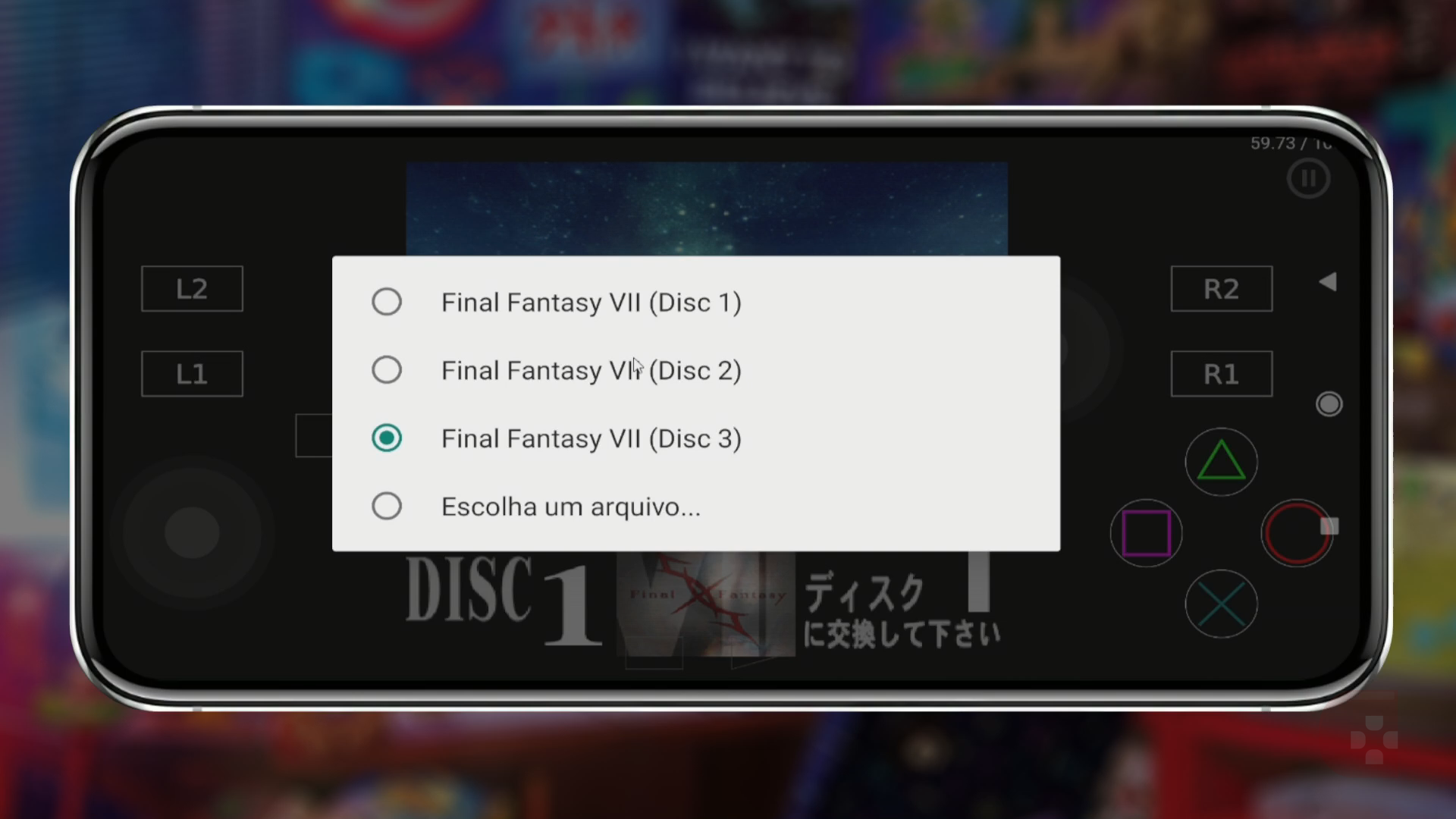
If you are a fan of emulators, you know that there are many games that need more than one disc to run. Fortunately, DuckStation for Android makes this easy with the playlists feature. In this tutorial, you will learn how to create playlists to change discs in DuckStation.
Before starting, make sure you have the appropriate file manager.
In this tutorial, we recommend a specific manager that is ideal for this task.
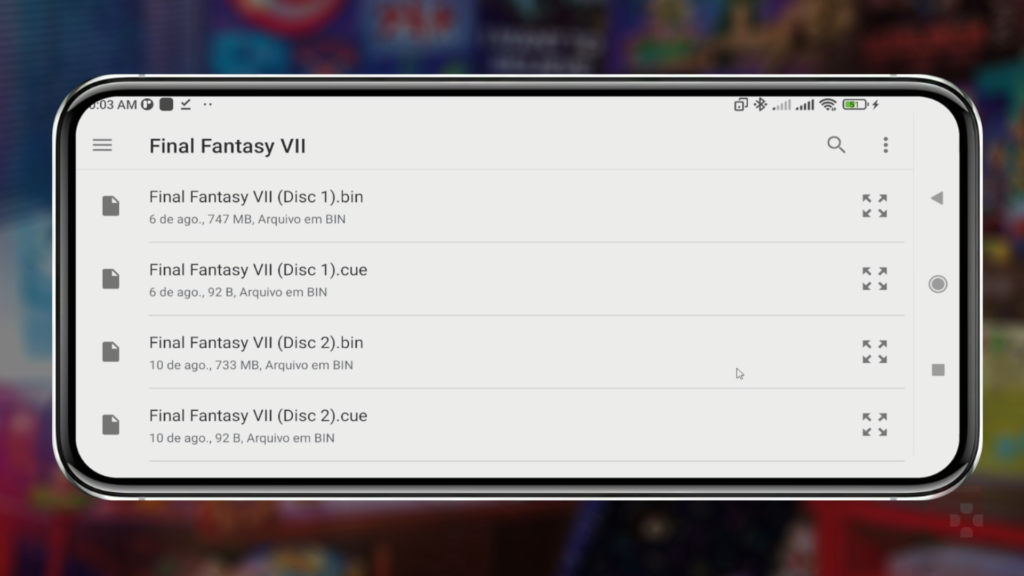
1. Place all the game discs in the same folder
Instead of separating each disc into a different folder, put them all together in a single folder. This will make organizing and creating the playlist easier.

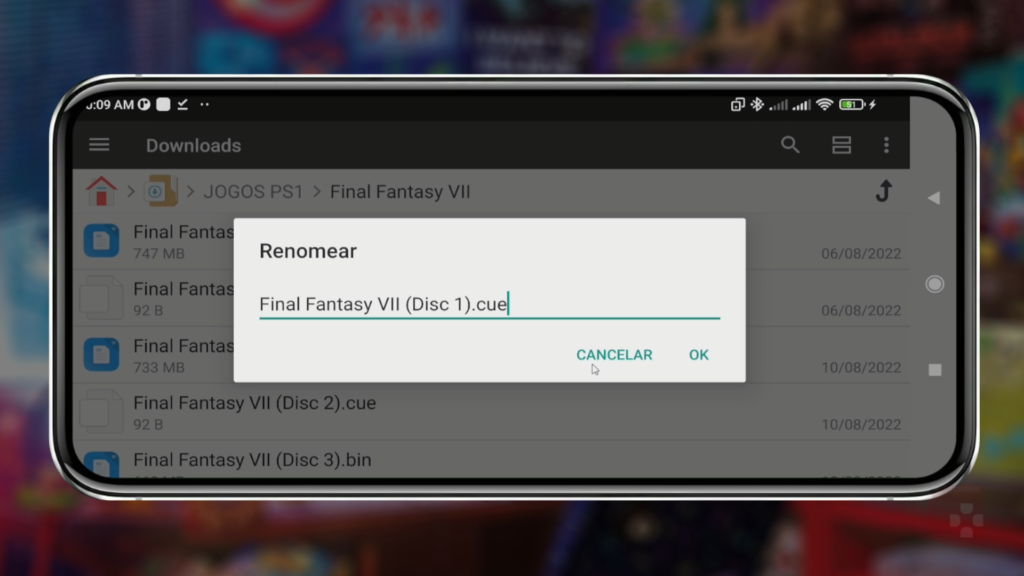
2. Copy the name of disc 1
Hold your finger on the .cue file of the first disc and click "rename". Copy the full name of the file, including the .cue extension, and click "cancel".
3. Create a text file
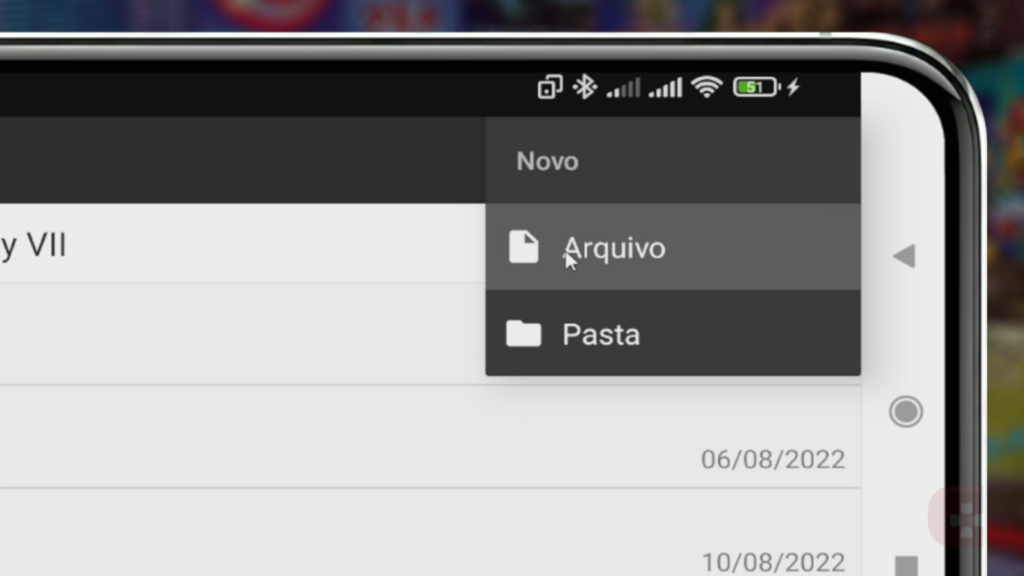
Next, click on the three dots in the top right corner, select "new" and then "file". Give the playlist an easy-to-identify name and add the .txt extension.
4. Add the game names to the text file
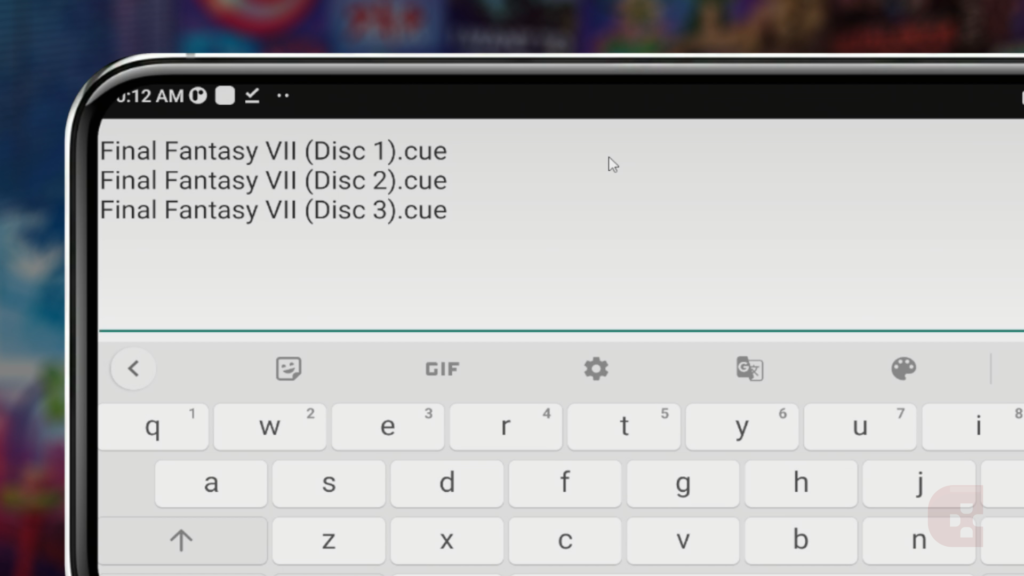
Right after, hold your finger on the file you just created, select "open with" and choose a text editor. Paste the game name you copied 3 times.
Now separate these names into 3 different lines, always ending at the letter "e" of the .cue extension. Then, rename the disc numbers. For example, on the second line change "disc 1" to "disc 2" and on the third line change it to "disc 3".
5. Save the file with the .m3u extension
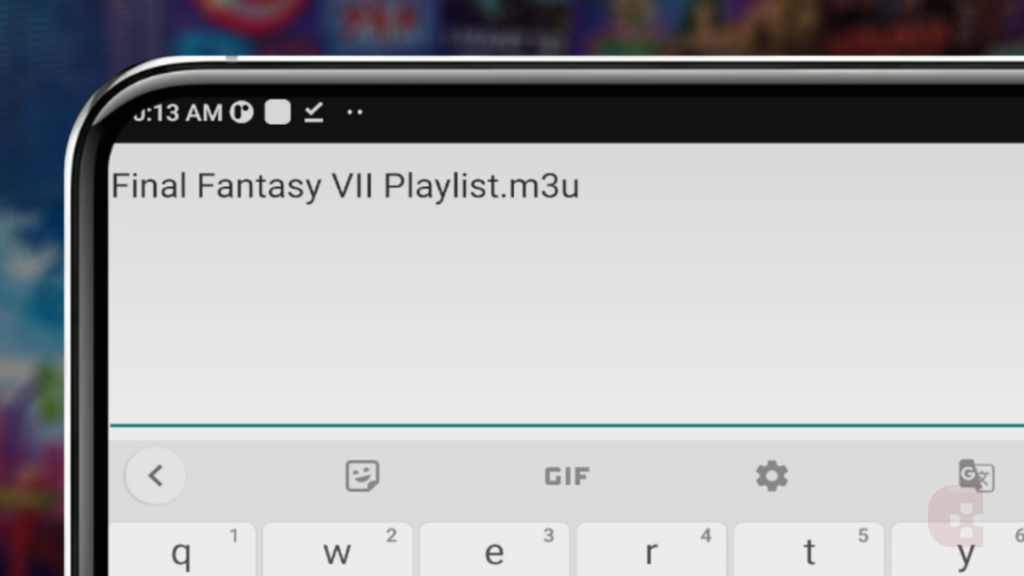
Next, click on "done" and then on the floppy disk icon, which will be in the upper right corner of the screen. Return to the folder where the file is saved and rename the extension from .txt to .m3u.
6. Check the games folder
Make sure the folder where you gathered the discs is inside the games folder you linked to DuckStation.
In conclusion, creating playlists in DuckStation for Android is a great way to change discs more conveniently. Although creating the playlist may seem laborious, it will be an essential tool when it comes time to swap discs. Therefore,
follow this tutorial and enjoy all the features that DuckStation has to offer.