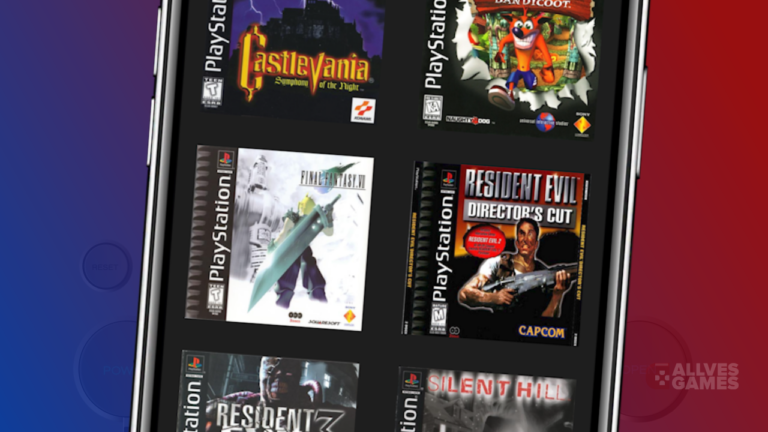
Some PS1 games were split into multiple discs due to media storage limitations at the time. In this tutorial, we will explain how to change discs in the emulator
DuckStation for Android.
Step by step: how to change discs in DuckStation
When you reach the moment the game requests a disc change, pause the emulator and click on the "Change Disc" option in the menu.

Next, select the next disc from the file list on your phone. Remember to choose the .bin file instead of the .cue.
It is important to highlight that, when changing discs, there may be a brief pause in gameplay, but this is normal and should not cause any problems.
Additional tips for playing games on multiple CDs
To avoid frequent interruptions, it is recommended to keep the files of all the game's discs in a single folder.
When naming the files, make sure they are in the correct order. For example, if the game has three discs, name the files as "disc1.bin", "disc2.bin", and "disc3.bin".
Changing discs in PS1 games is an easy task in the emulator
DuckStation. With a few simple steps, you can continue your journey without problems. Don't forget to follow our additional tips
clicking here, for an even better gaming experience.

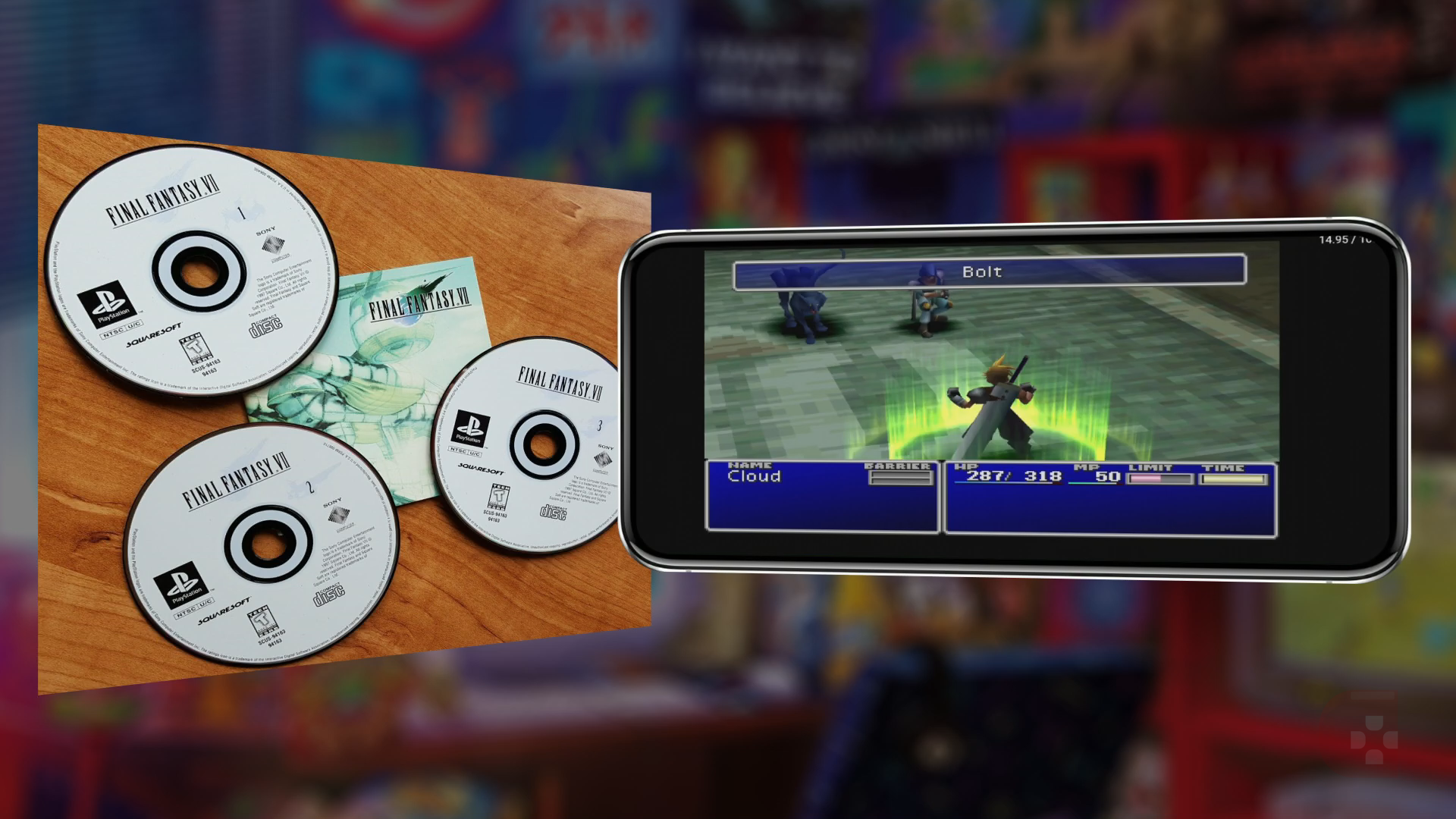
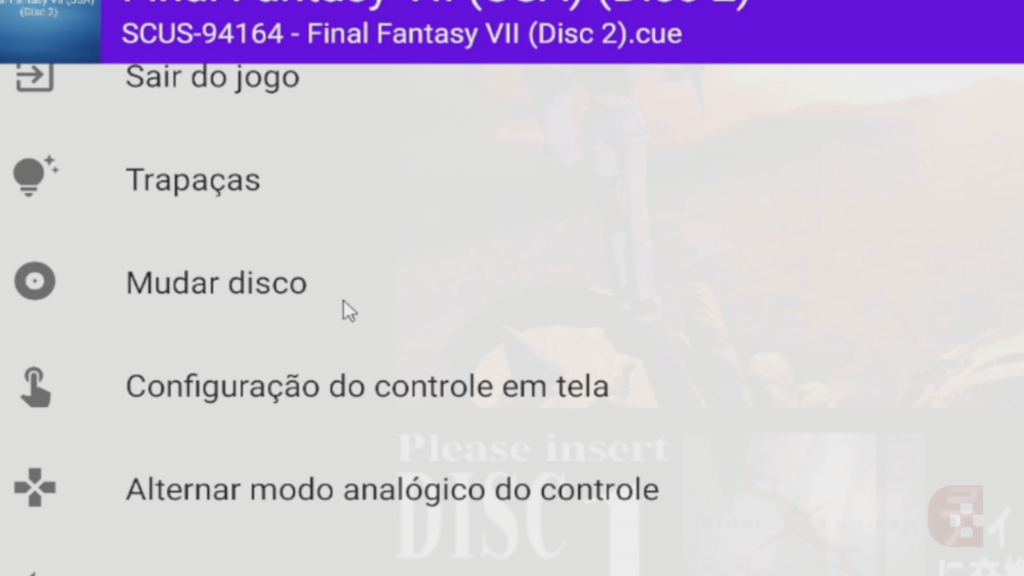 Next, select the next disc from the file list on your phone. Remember to choose the .bin file instead of the .cue.
It is important to highlight that, when changing discs, there may be a brief pause in gameplay, but this is normal and should not cause any problems.
Next, select the next disc from the file list on your phone. Remember to choose the .bin file instead of the .cue.
It is important to highlight that, when changing discs, there may be a brief pause in gameplay, but this is normal and should not cause any problems.