In this tutorial you will see how to put games on
DuckStation for Android. Before that, see our
file management tutorial.
https://youtu.be/lE2QI89RRjg
How to add a game folder
Open the emulator,
click on the 3 bars which are in the upper left corner, then click on
Edit game directories, then click on the
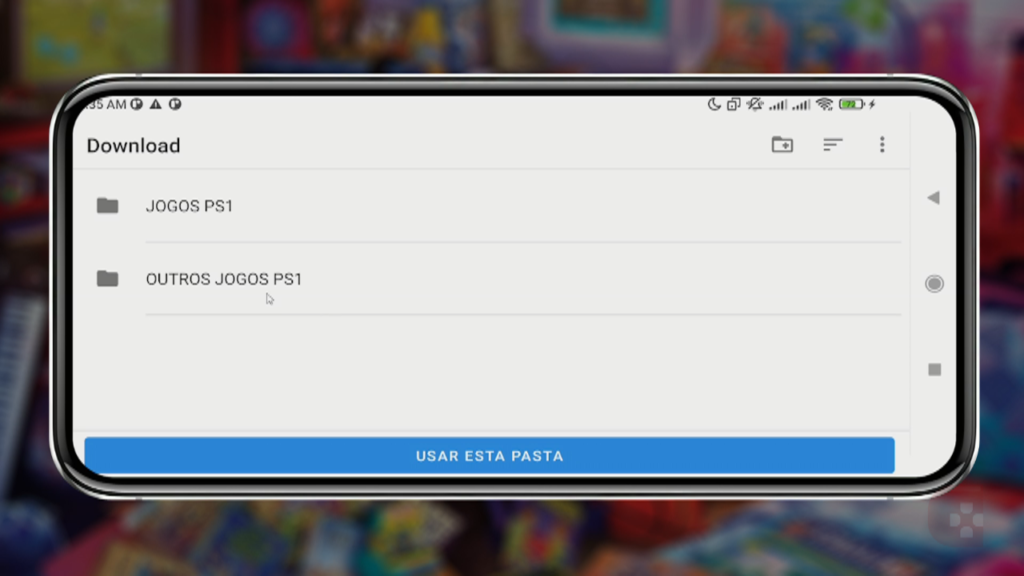
+ button which will be in the lower right corner, and then you look for the folder where you are saving your games. Here in my case it is the PS1 GAMES folder.

As soon as you select the folder, click on
Use this folder. But first, confirm that you are selecting the right folder, okay? The name of the folder you are selecting will always appear in the top left corner. At least that's how it is on my phone.
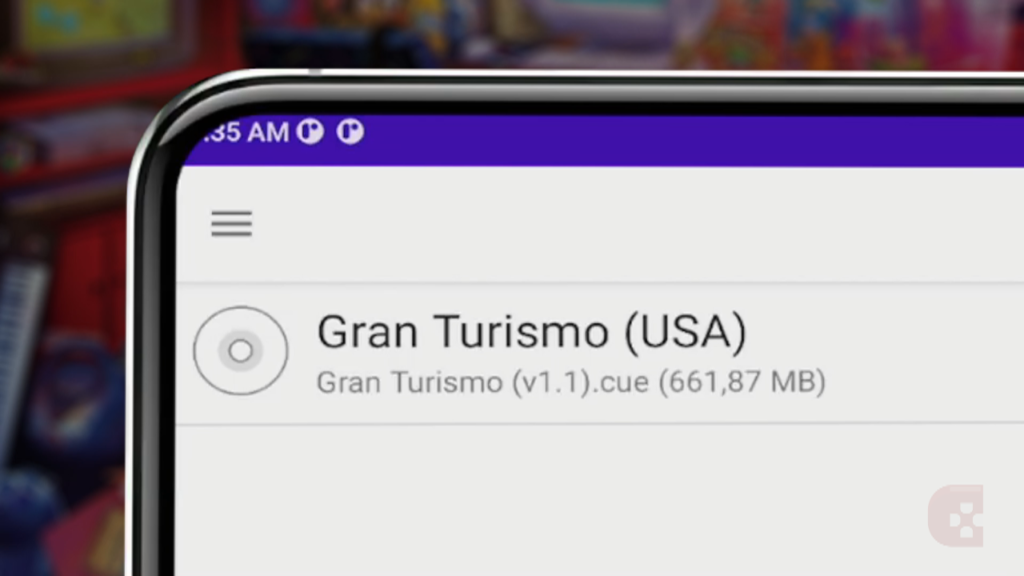
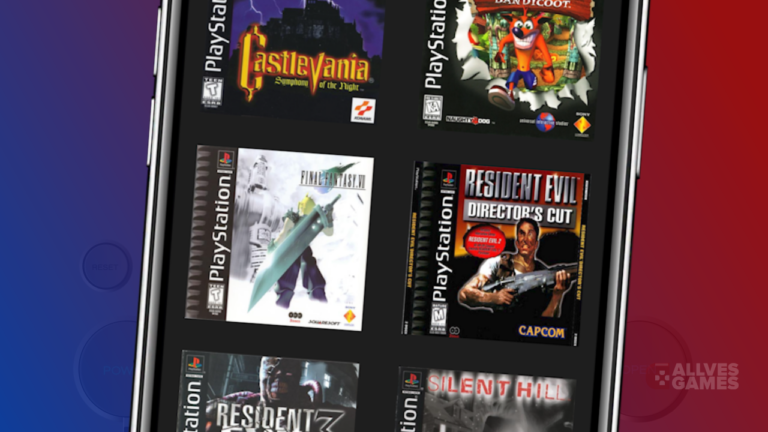
Now you will notice that all the games you save in the folder indicated in the emulator will appear in the library of
DuckStation which is right on the home screen.
Remembering once again that the files need to be in the correct format to appear in this library.
How to add another game folder
If you ever want to point the emulator to another folder, just click again on
Edit game directory, click on
+ button, select a new folder, and then the emulator will pull the games from all the folders you selected, and they will appear in the library.
I personally prefer to keep the games in a single folder, but there is the tip for those who will use more than one folder.
How to delete a game folder from the emulator
If you want to delete a folder from the emulator, just go back to the game directory,
click on the trash can icon of the respective destination you want to delete, and that's it. The emulator will no longer pull games from that folder.
And relax, because when you click on the trash can, you won't be deleting the folder from your phone. You are only deleting the destination of that folder in the emulator.

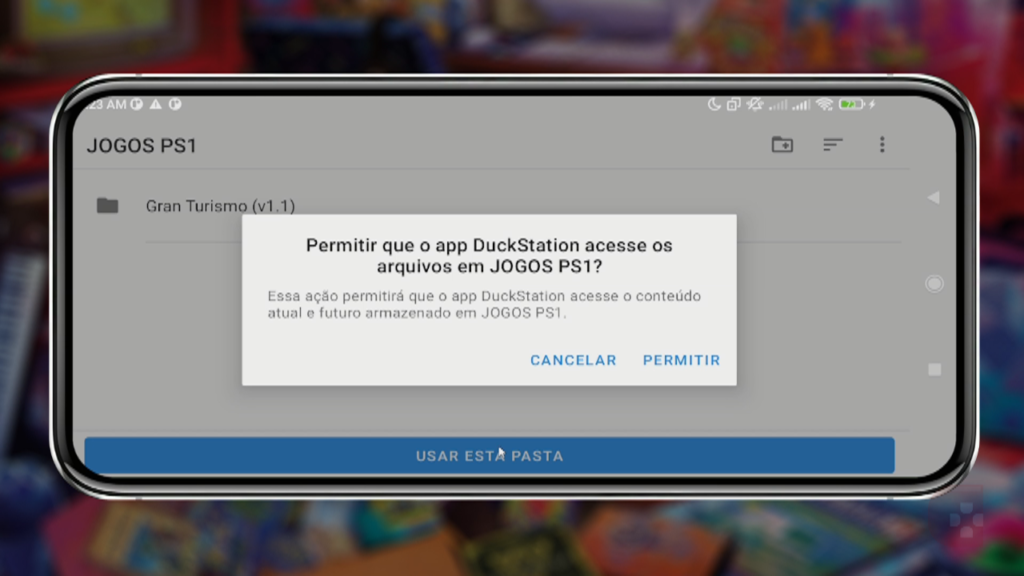 As soon as you select the folder, click on Use this folder. But first, confirm that you are selecting the right folder, okay? The name of the folder you are selecting will always appear in the top left corner. At least that's how it is on my phone.
Now you will notice that all the games you save in the folder indicated in the emulator will appear in the library of DuckStation which is right on the home screen.
As soon as you select the folder, click on Use this folder. But first, confirm that you are selecting the right folder, okay? The name of the folder you are selecting will always appear in the top left corner. At least that's how it is on my phone.
Now you will notice that all the games you save in the folder indicated in the emulator will appear in the library of DuckStation which is right on the home screen.
 Remembering once again that the files need to be in the correct format to appear in this library.
 I personally prefer to keep the games in a single folder, but there is the tip for those who will use more than one folder.
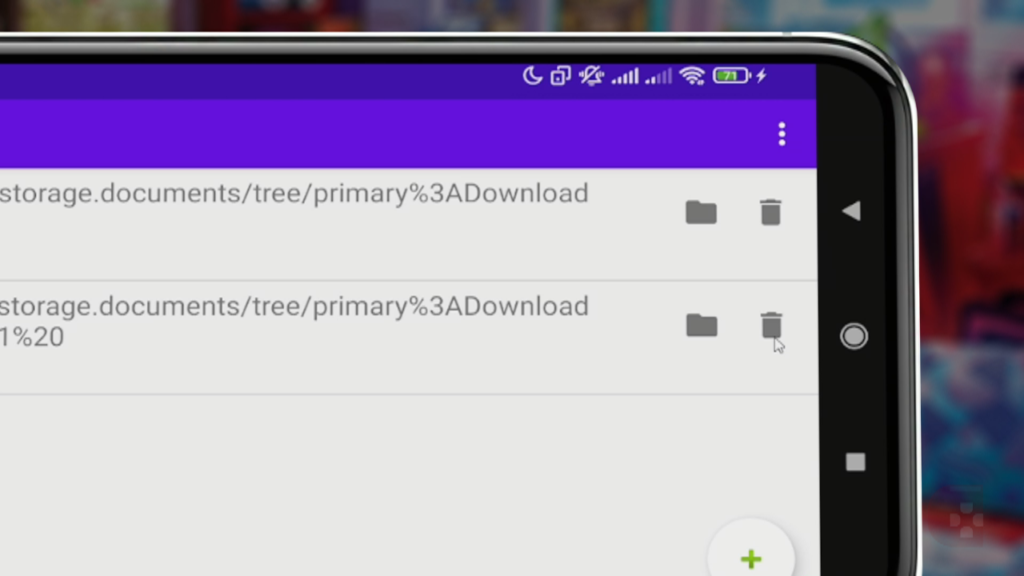 And relax, because when you click on the trash can, you won't be deleting the folder from your phone. You are only deleting the destination of that folder in the emulator.
Pingback: Como Abrir Jogos no DuckStation de Android