1. Access the Link for the Covers
Start by clicking here. On the website you will find the necessary link to download the covers. Copy the entire link, without leaving out any character.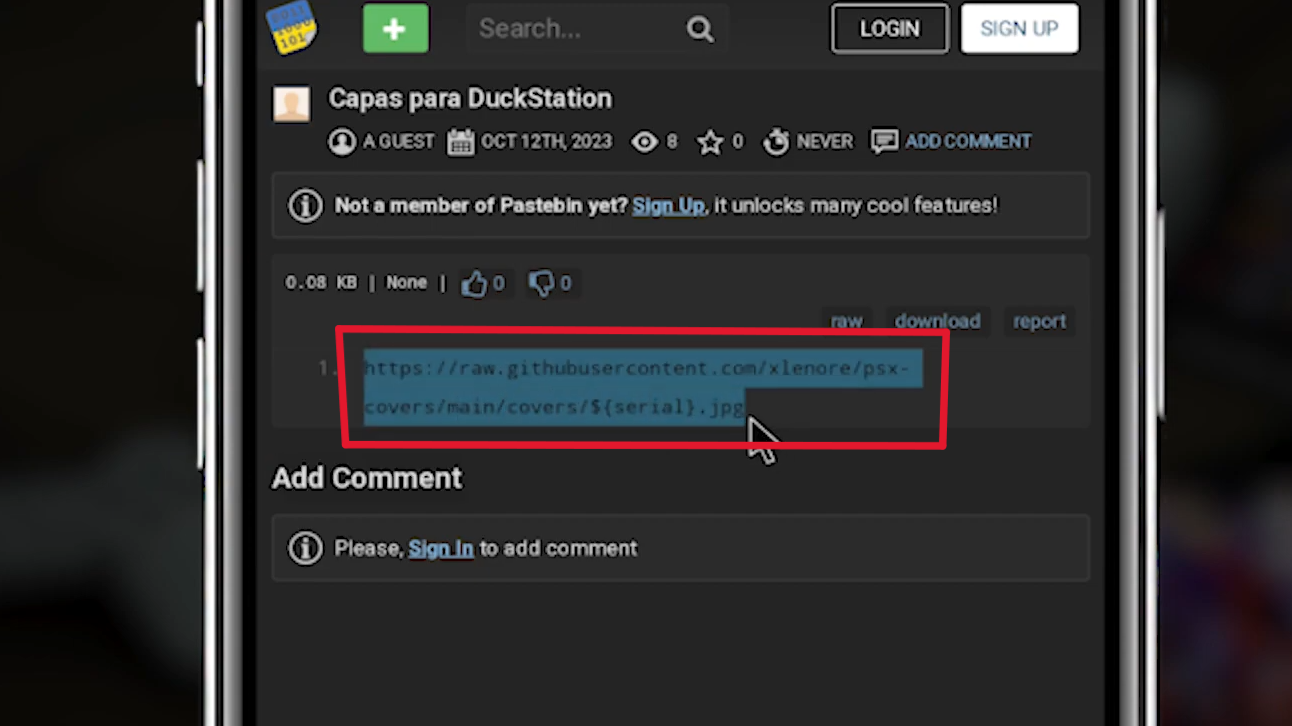
2. Open DuckStation
Go back to DuckStation and click the icon in the upper left corner. Scroll down until you find the tab Download Covers. Paste the URL you copied into the provided field and check if any characters are missing.
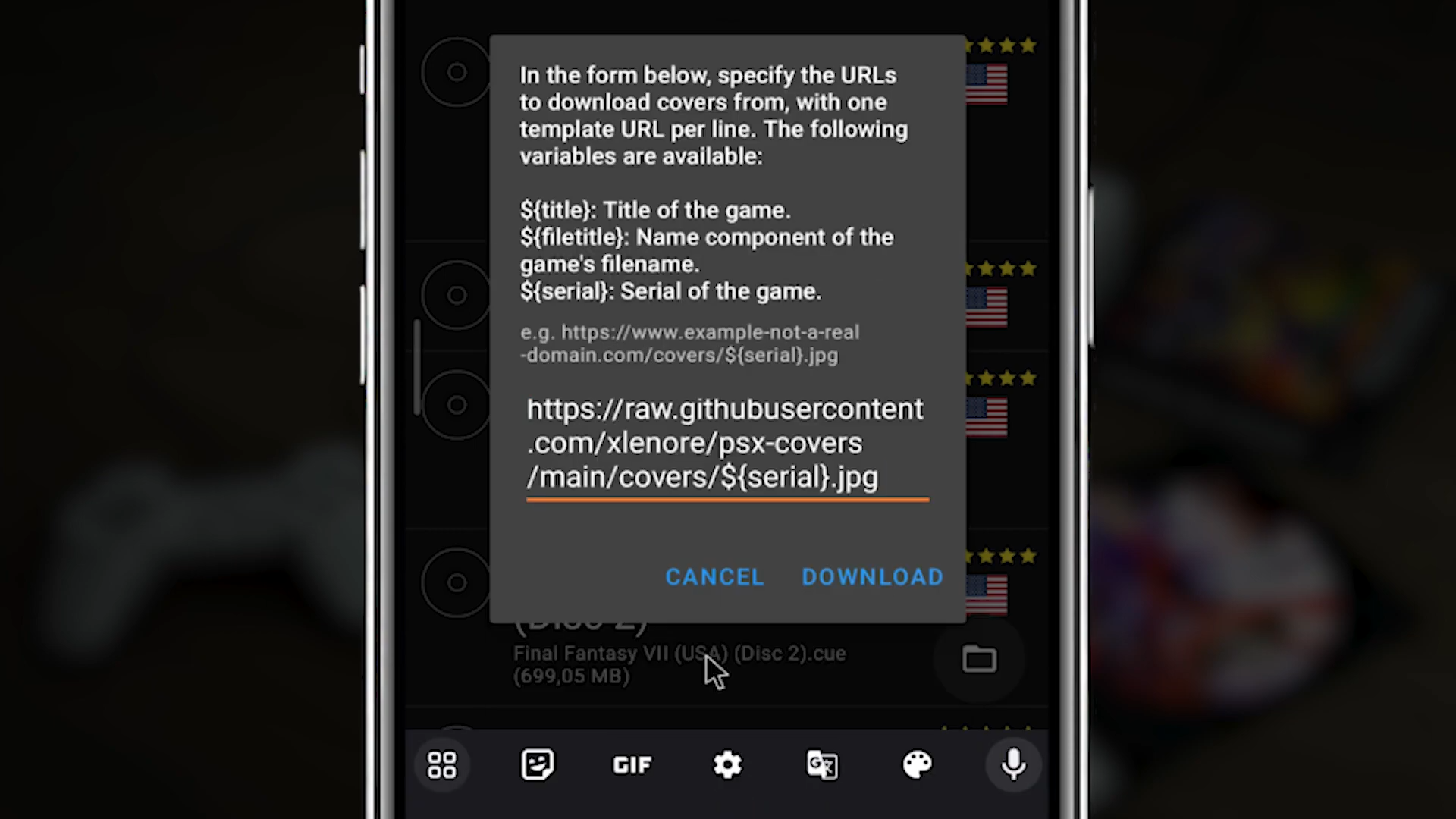 Click on DOWNLOAD and DuckStation will process and download the covers for the games in your library.
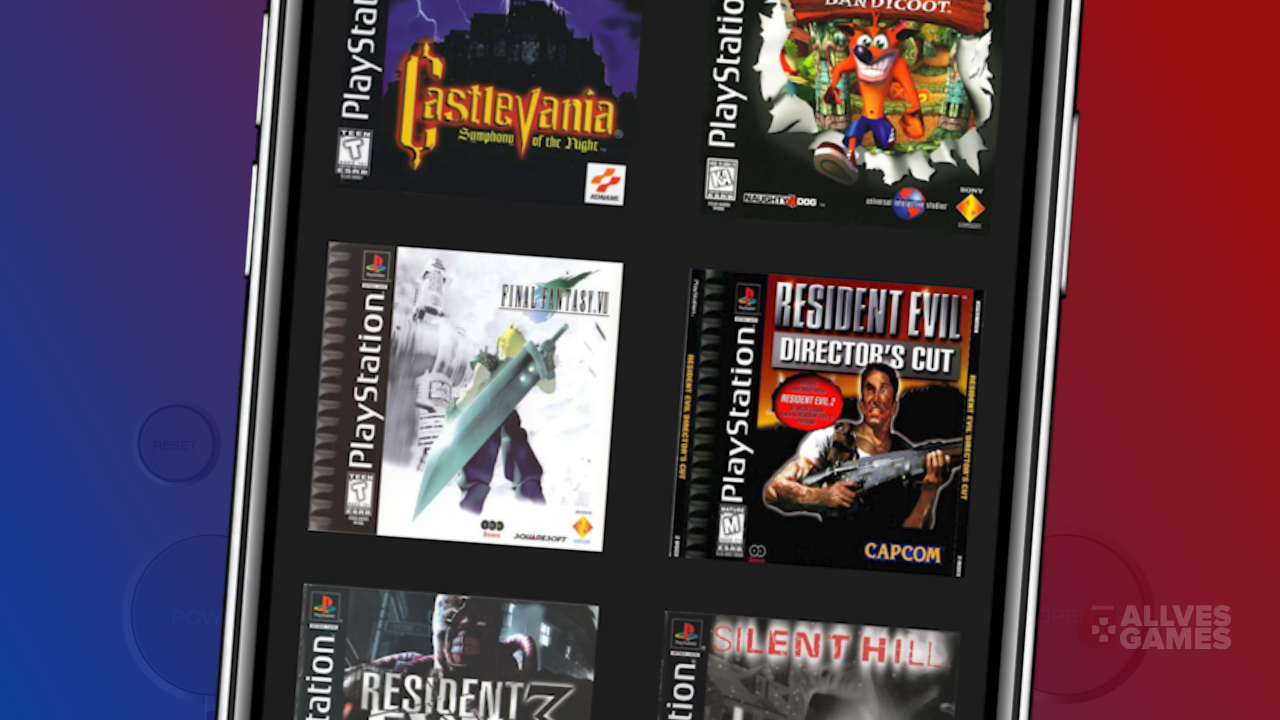
View the added covers for the games in your DuckStation library.
Click on DOWNLOAD and DuckStation will process and download the covers for the games in your library.
View the added covers for the games in your DuckStation library.
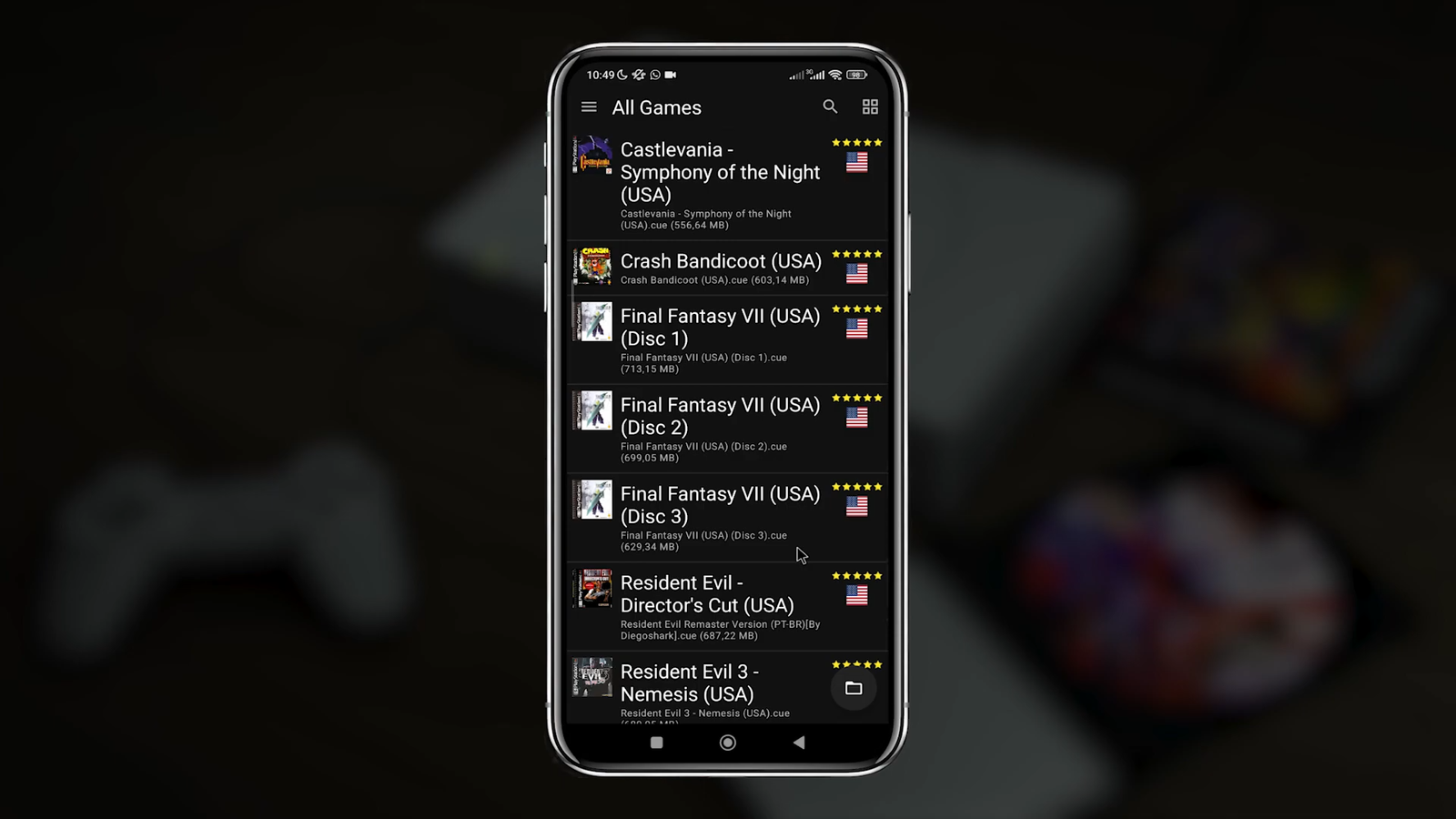 Note: whenever you add new games to DuckStation, you will have to go through this cover linking process. So, it is ideal to add several games to DuckStation and then download the covers.
3. Change the Library View (optional)
If you wish to change the library view, click on the four-square icon in the top right corner and switch to grid view, or vice versa.

In this tutorial you learned how to add covers to games in DuckStation for Android. For more tutorials on DuckStation, click here.